Enable DirectAccess on Windows Server 2012 Essentials
October 15, 2012 125 Comments

This post is now quite out of date and the instructions within are no longer reliable. Please refer to Microsoft’s own document online for the relevant steps.
http://technet.microsoft.com/en-us/library/jj204618.aspx
One of the coolest improvements in Server 2012, is the simplification of DirectAccess. Not just the steps to enable it, but the requirements for your infrastructure to support it. In the past it was beyond most SMBs due to the need to have 2 consecutive public IPs a dedicated DA server, IP 6to4 translation capable equipment, and not to mention Windows 7 Enterprise, which few SMBs deploy. Moving into the 2012 line of products DA has become much more available to SMBs with the reduction in infrastructure requirements. Taking Essentials as an example, we can now run DA using just a standard Internet connected router, and with just our Essentials box as the DA endpoint.
Sadly, the requirement to use an Enterprise level Client OS remains (or 7 Ultimate), and with changes to the way Windows 8 Enterprise will be purchased it may yet prove to be a nice to have feature, but one few spend the money to implement. If you consider perhaps using Essentials in conjunction with maybe some like Windows Intune, then perhaps it can start to make sense for an SMB sized budget or as part of an MSP style offering.
Personally i think it is very exciting to even have the possibility of using it available, it allows for the creation of some interesting scenarios for deployment such as hosting Essentials boxes, without the need for dedicated VPN tunnels to the data centre.
If you don’t know, DirectAccess is a ‘clientless’ permanent VPN between a computer and the corporate network. It allows for the computer, not just the user, to have full access to internal resources, from any internet connection that supports HTTPS. So, for example if i have an internal server named Server01, i can sit in Starbucks, open up Windows Explorer and go to \\Server01 and i can access the resources. Similarly if the Admin needs to deploy a GPO change, this will apply as soon as the GPO refresh interval expires, rather than having to wait for the computer to go back to the corporate lan.
I am by no means an expert, in DirectAccess or anything else, so my understanding of, or explanation of DA may be slightly off in places, but here are some useful resources where you can study DA in more detail.
- http://en.wikipedia.org/wiki/DirectAccess
- http://technet.microsoft.com/en-us/library/jj204618.aspx
- http://blog.msedge.org.uk/2012/08/windows-server-2012-directaccess.html
As with most of my blog posts, i am just taking someone else’s ideas and making them look good a little easier to follow. With that in mind, here are the official instructions on how to enable DA on your Essentials Server.
For this setup i have not done anything special, i have completed the installation of Essentals and run the Setup Anywhere Access wizard, i have enabled my server to be connected to using either VPN or the RWA. I have also installed a publically trusted SSL Certificate installed, and I have a single Windows 8 Enterprise client connected to the server.
Install RSAT Tools
The first step in the Microsoft guide is to install the RSAT Tools. Which can be done easily through Server Manager. Here lies the first problem, with the instructions live on todays date (15th October 2012) The Server Manager icon is no longer on the task bar by default (as it was in early betas) you find it by opening…
Actually you know what.. Just use PowerShell it’s quicker to explain.
Open an Elevated PowerShell window and type in:
Add-WindowsFeature –Name RSAT-RemoteAccess-MGMT

After a few seconds the required tools are installed.
Change to a Static IP Address
The next step is to put your Server on a static IP address. There are a couple of considerations to make here before we go ahead and do that. Firstly, DHCP is generally going to be running on your router in an Essentials network, that is certainly the designed scenario. If this is the case, switching your server over to a static IP may be something you need to consider more carefully. Basically you just need to make sure that any DHCP issued addresses will not overlap with any IP you give your server. Most routers that support DHCP will allow you to set a start and end address, so make sure that your Servers IP is outside that range.
Once you are happy you have chosen an address that is suitable, we can go ahead and configure our adapter.
Because i like PowerShell so much I’m going to tell you that you can now very easily configure TCP/IP properties using PowerShell. However, if you are familiar with TCP/IP properties you can still do this via the GUI, and in fact, if you are remote desktop’d into your server, it is better to do this via the GUI as otherwise you will likely cut yourself off!
For those that are interested in the PowerShell method, you can make use of the following new CMDLets.
More info on the new TCP/IP CMDLets can be found here.
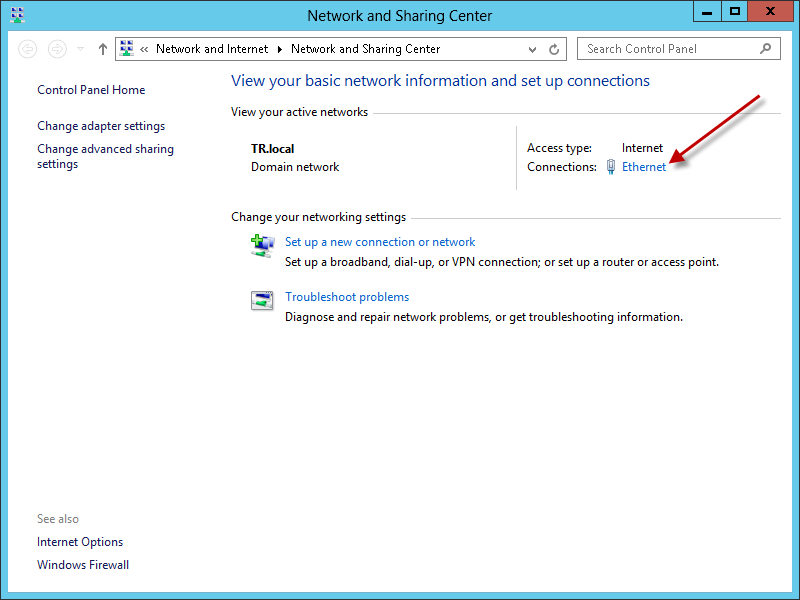
So, to do this through the GUI, go to the Network and Sharing Center, Click on the link for the network interface properties.
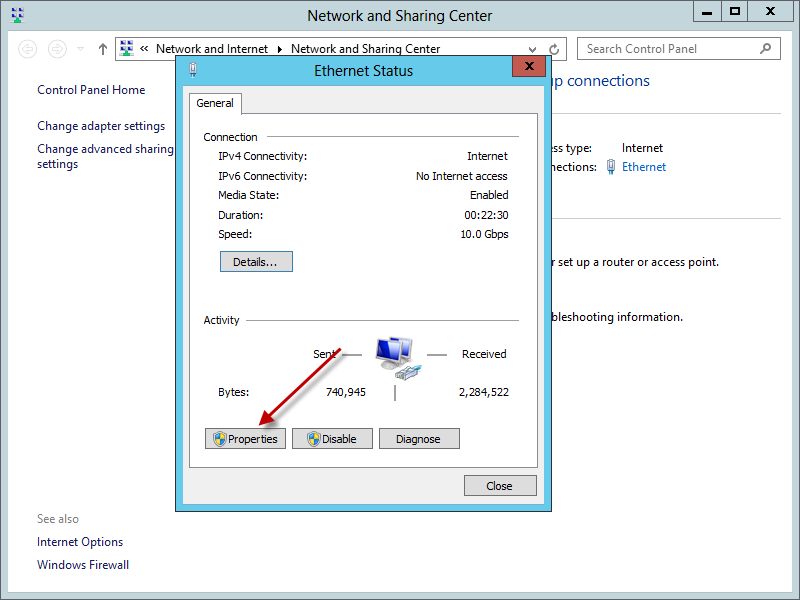
Then click Properties, then find TCP/IP version 4, select that and hit properties. You can fill out all of your desired info here.

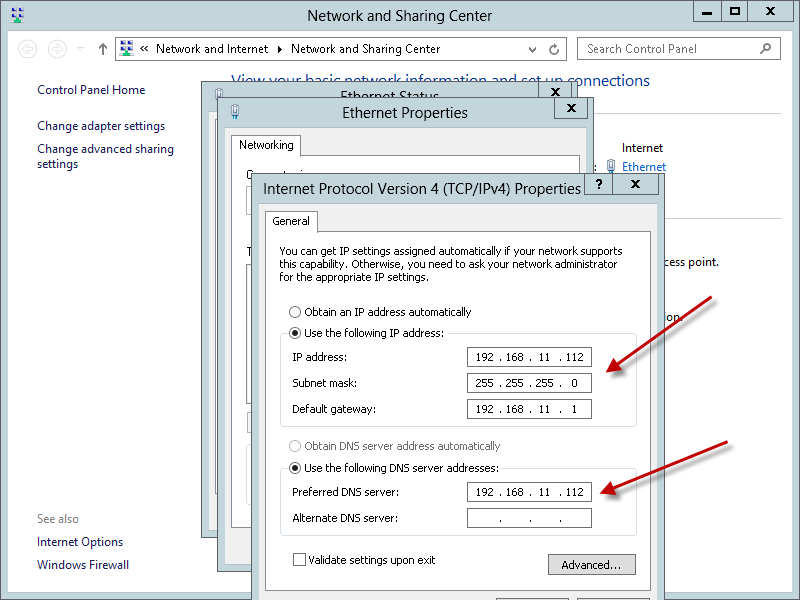
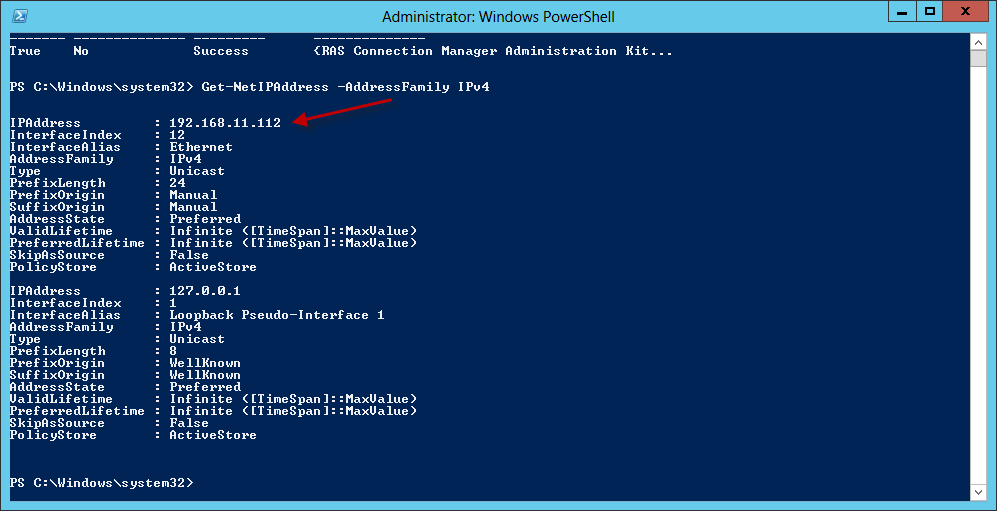
You can use one of the new PowerShell CMDLets to review your configuration.
Modify Web Server Certificate Template.
We need to modify the security permissions on the Web Server Certificate template so we can enroll our Essentials server for a certificate. This is easy enough to do.
First we need to open the Certificate Authority, which we can do from Start > Administrative Tools > Certificate Authority.
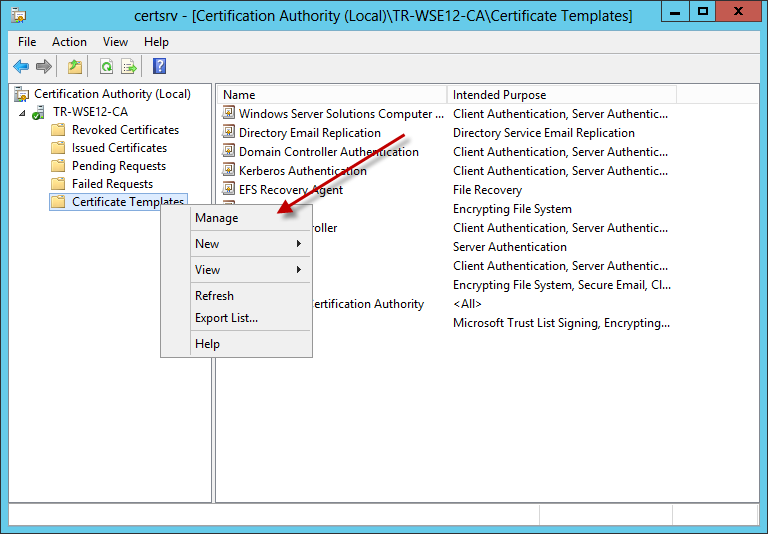
When the MMC opens, expand your Server Name and find ‘Certificate Templates’ right click this, and click Manage.
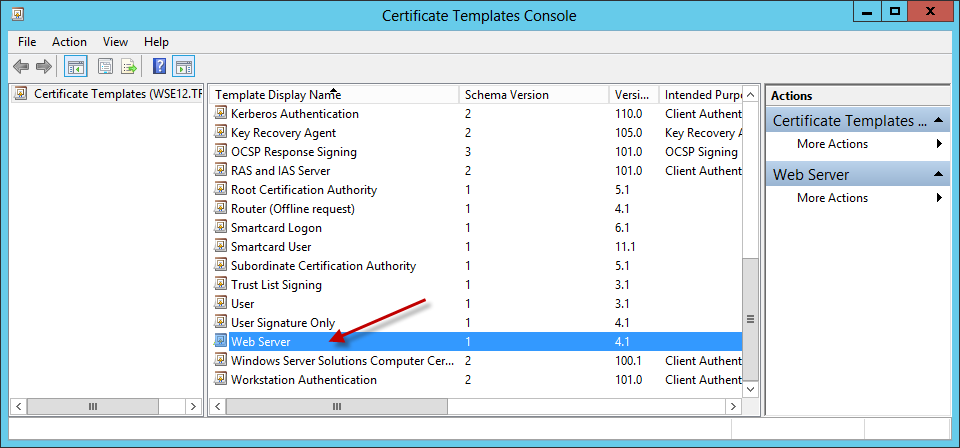
A new window will open with all the different templates that are available. Find Web Server, and right click that, and go to properties.
Go to the Security tab, and modify the Authenticated Users, so that they have Full Control.

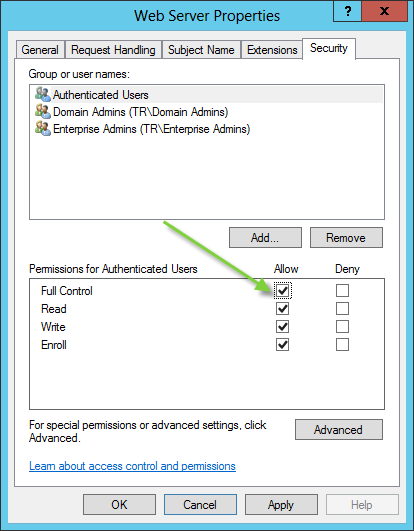
Click Ok to save that change, and then you can close the CA window.
Add a DNS Host Record
Now we need to add a new DNS record on the internal DNS Server, creating a name to be used as a Network Location for DA Connectivity testing, and if you don’t understand what that is, then you are not alone. Just know it has to be unique from any other name you might use. I am going to use ‘DirectAccess’
Go to Start > Administrative Tools > DNS
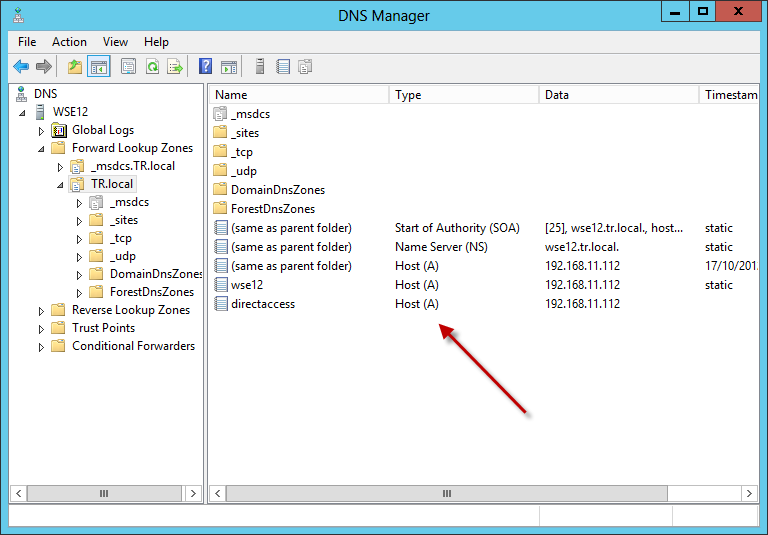
Expand Forward Lookup Zones, and Expand your Internal Domain Name (ie. TR.local) Right click the details pane and click New Host (A or AAAA)

In the Name field, enter the name you want to use for the DirectAccess endpoint, as i said, i am using DirectAccess as it is nice and easy also enter in the IP address of the Essentials server.

Click Add Host to add the record, then click Done.
Enroll a Web Server Certificate
To enrol for a certificate, we need to add the Certificates snap-in for the Local Computer.
You can try and fiddle about with the metro interface and your mouse, or hit Windows Key + R and type in MMC.
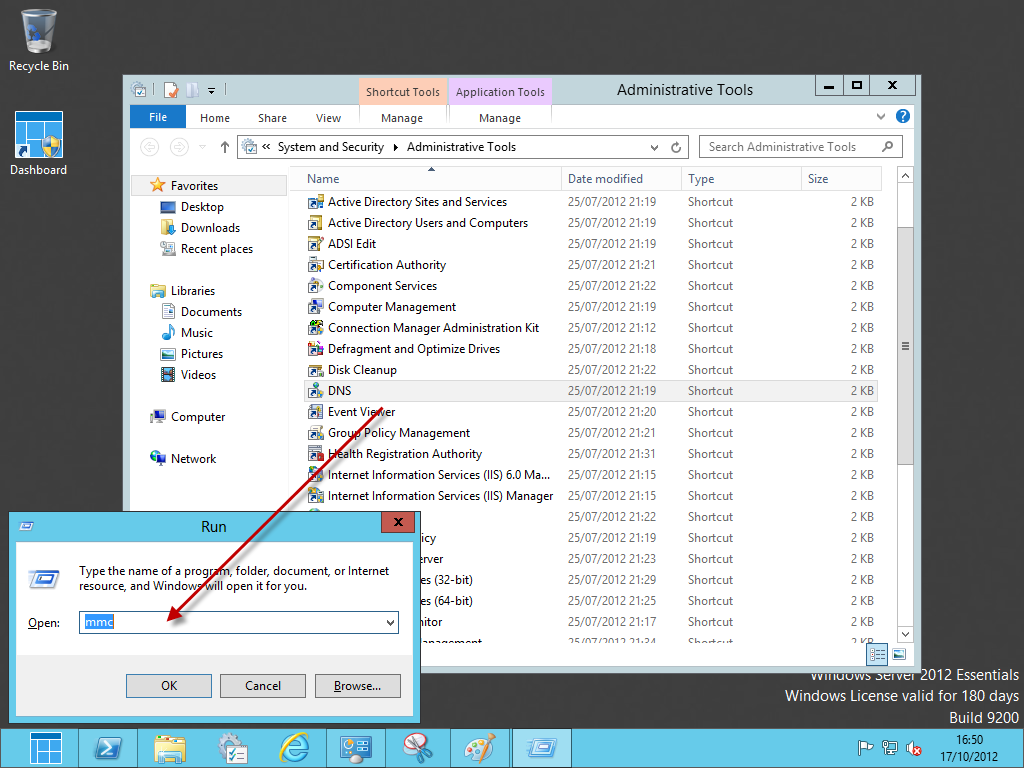
In the MMC window, click File, Add Remove Snap-in, Choose ‘Certificates’ then click Add. Choose Computer Account, then Local Computer, and click Ok.
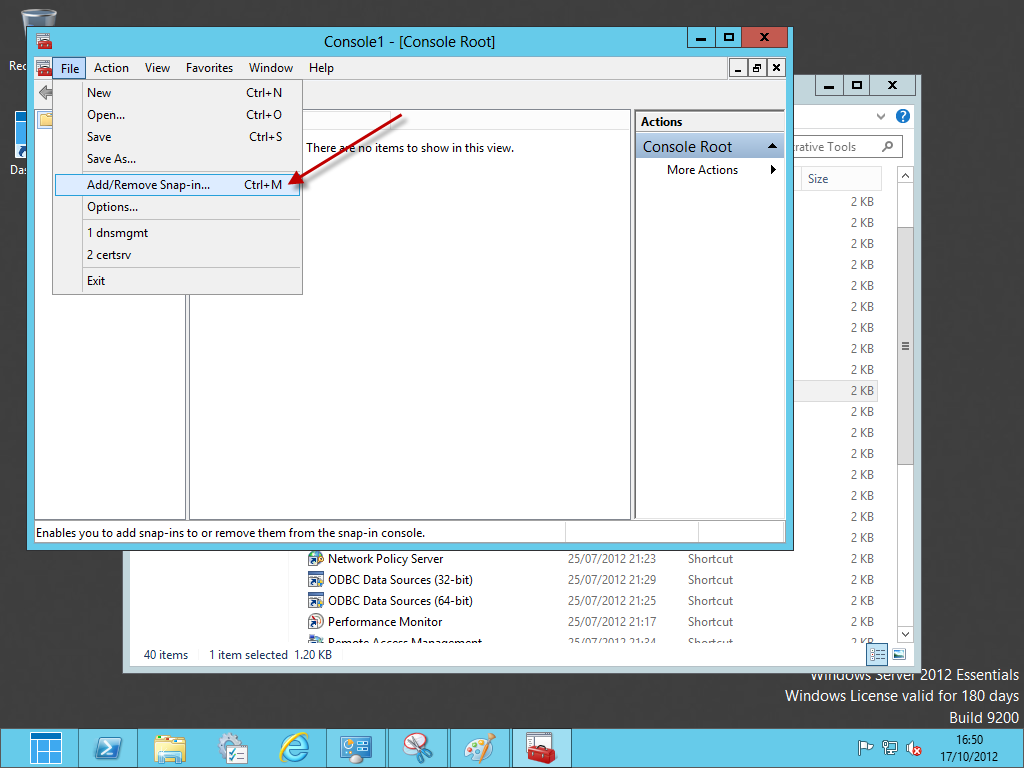
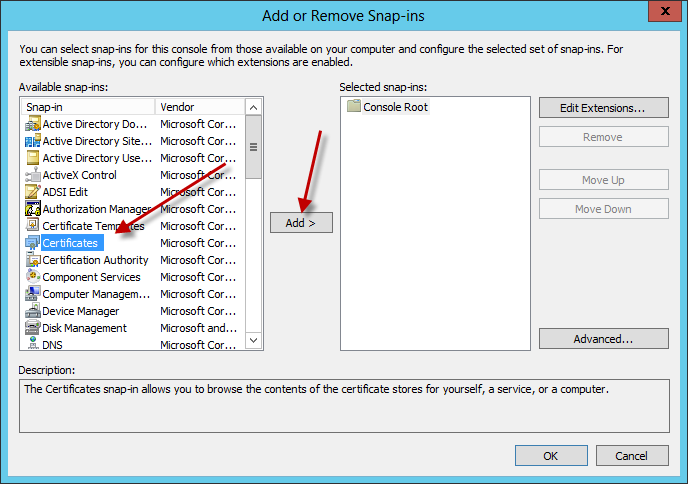

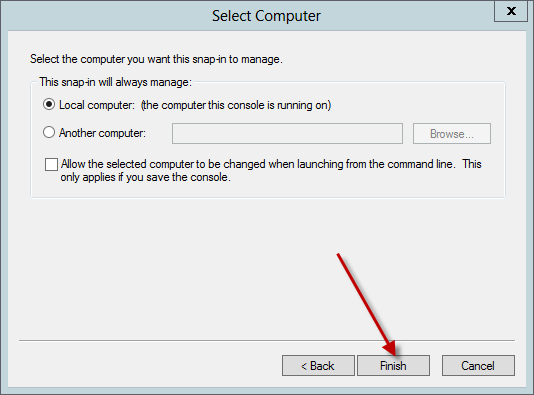

In the Certificates Snap-in, expand Personal. In some free space, right click, select All Tasks and click Request New Certificate.

Click next on the ‘Before you begin page’ then next again on the Enrollment Policy page.


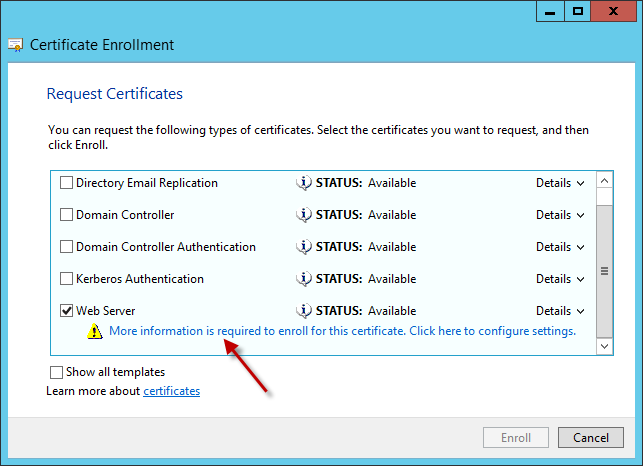
On the Request Certificates page, find Web Server, then click underneath where it says ‘More Info Required’
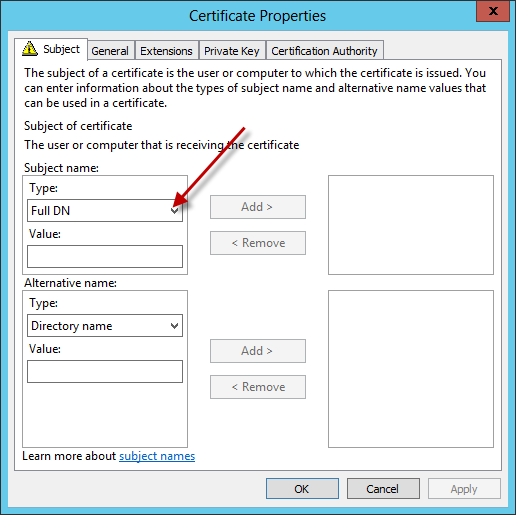
Under ‘Subject Name’ use the dropdown menu to Select ‘Common Name’ and in the value box, enter a name for your DirectAccess certificate.
This certificate is completely separate from any used on the internet, and needs a unique name.
I am using ‘DirectAccess.TR.Local’
Enter your value, and click Add.

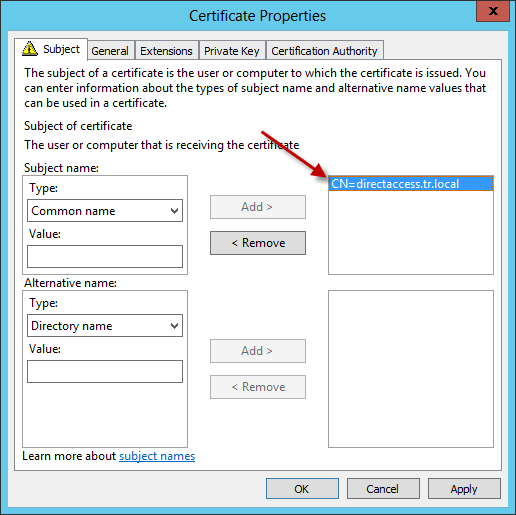
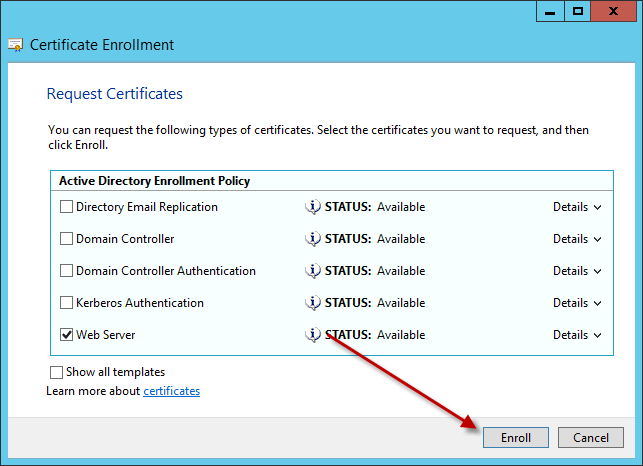
Click Ok, and click Enroll. Your certificate should now be issued and automatically enrolled.

You should see your new certificate showing in the MMC.
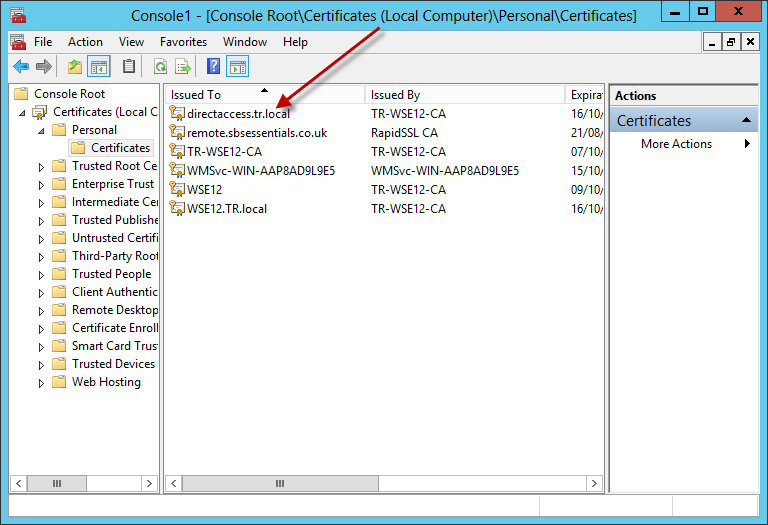
Enable DirectAccess
If you are also reviewing the Microsoft guide, then we are now at Step 4.
We now need to open up the Remote Access Management console. We can do that a number of ways, but i have pinned the Administrative Tools folder to the task bar so it can be easily accessed via the Desktop. Inside that folder is the Remote Access Management console.

Once inside, go to the Configuration option. The Enable DirectAccess wizard will start.

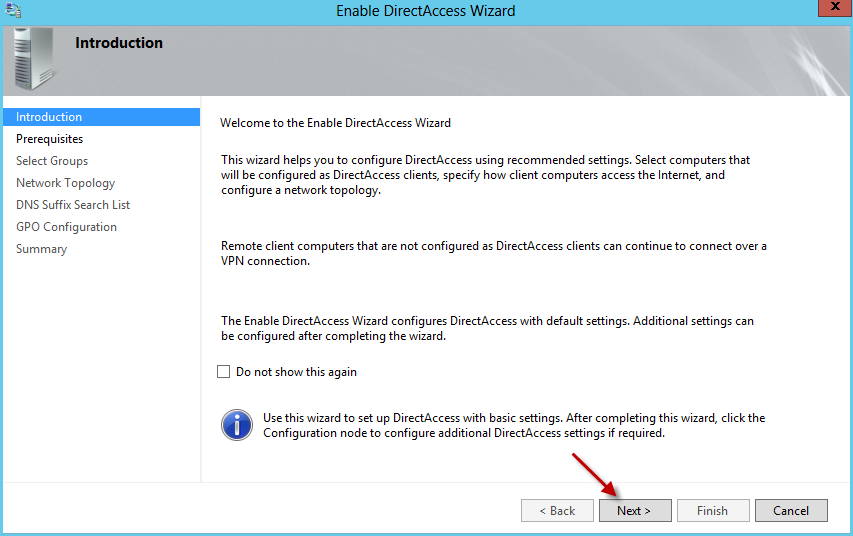
After the Pre-Requisite check you will be prompted to add a specific group for computers that will be enabled for DA.
I created a new group called ‘DirectAccessComputers’ for this purpose.
You can decide if you want to enable DA for mobile computers only, i am not doing that as i have some VMs that will be using DA for testing.
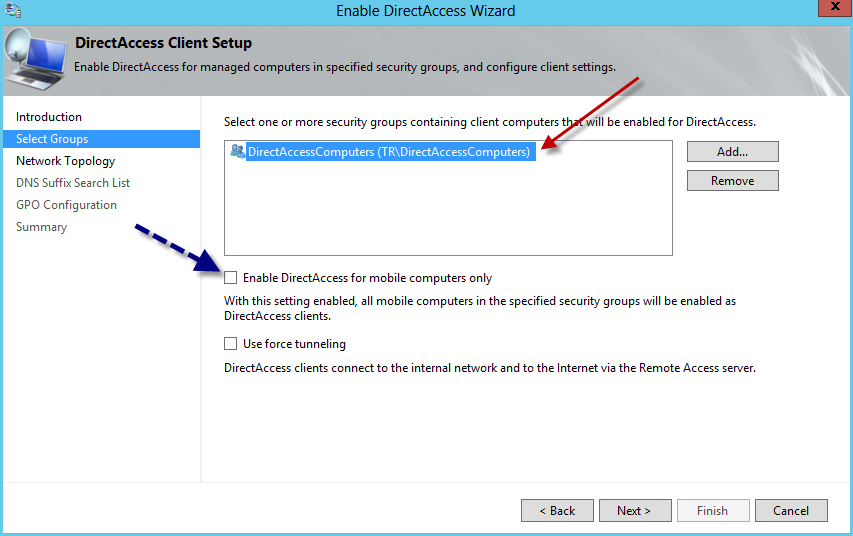
The rest of the screens in the wizard can be left on there defaults.
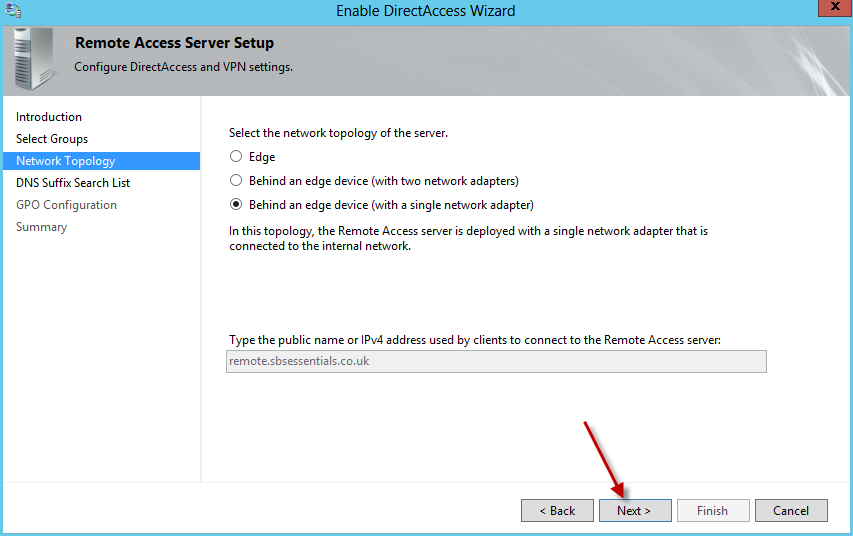
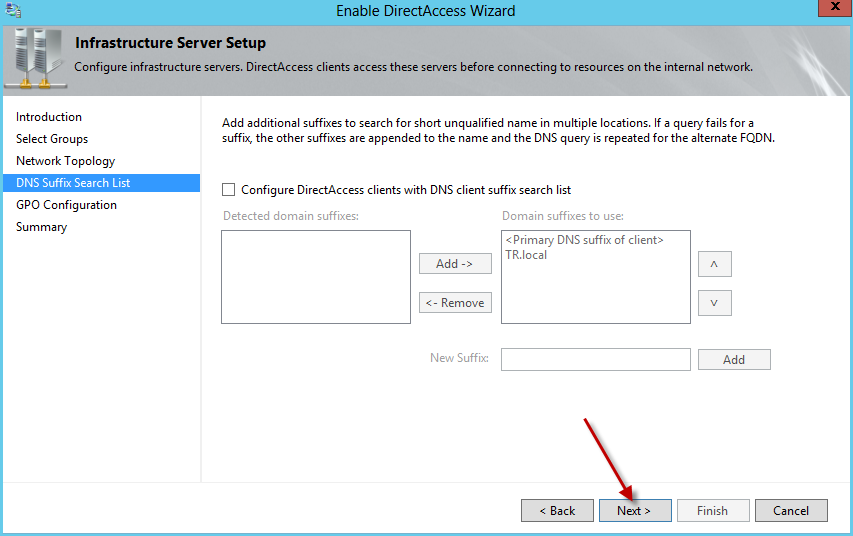
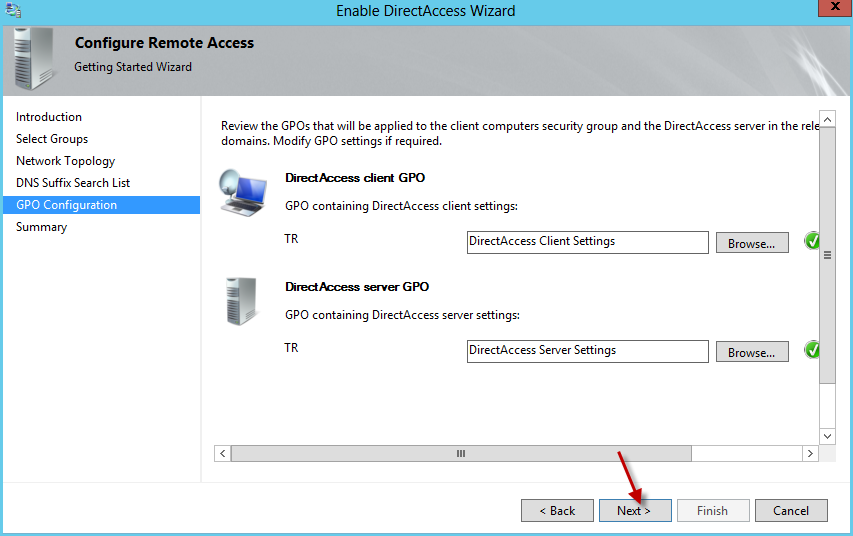
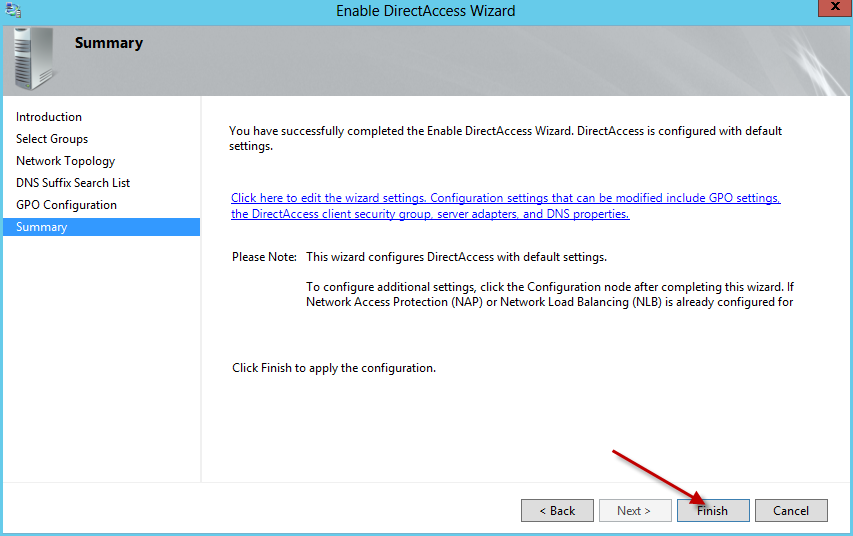
When you are done, click Finish. You will notice the wizard may have completed with a warning, this is due to the Remote Access service needing to be restarted.
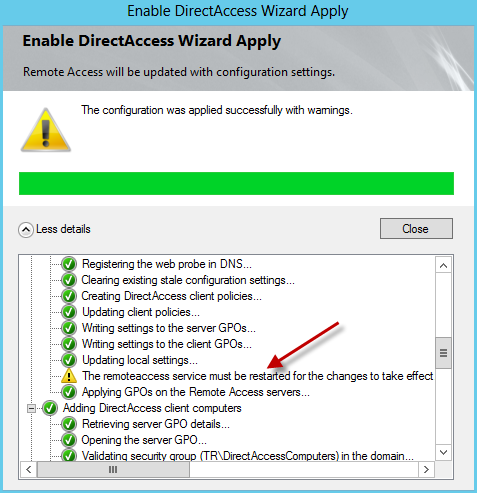
Now, we have some other tasks to accomplish.
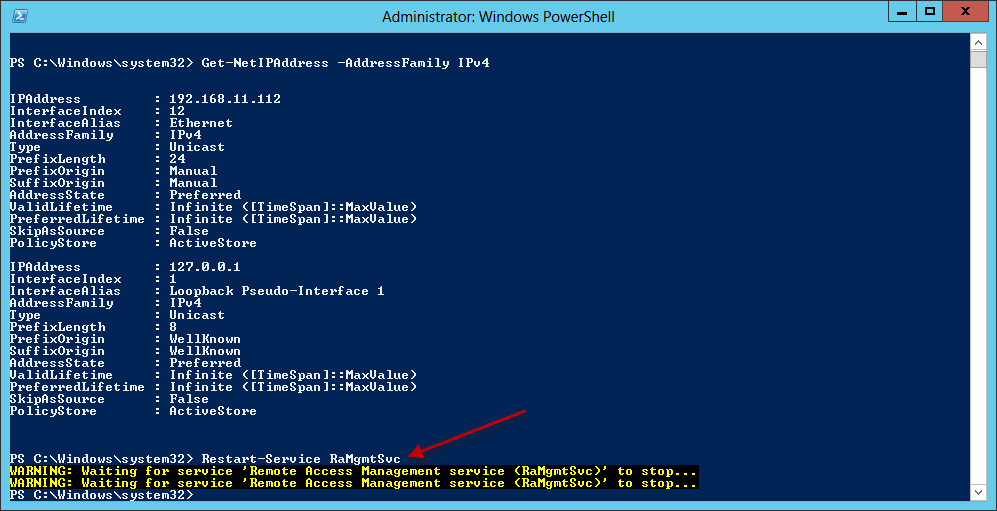
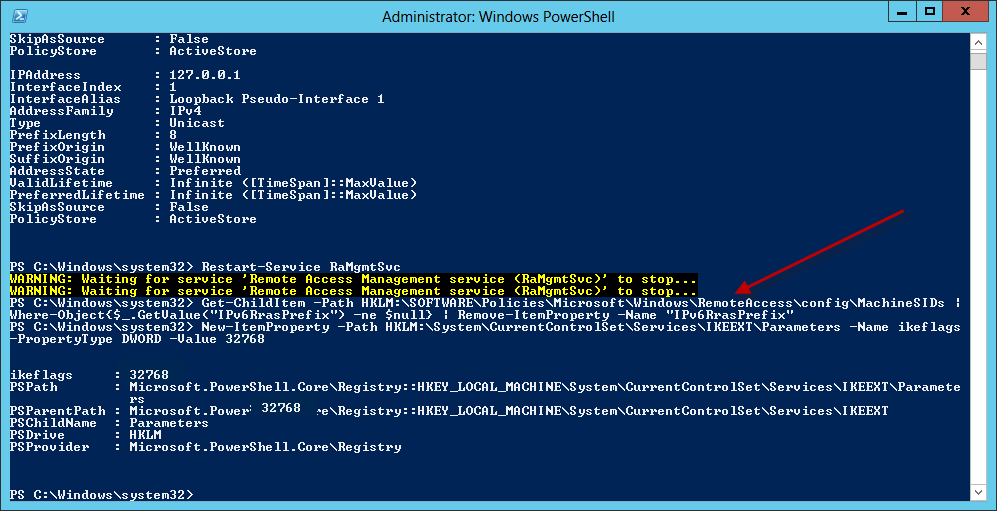
First we need to restart a service, you can do this through PowerShell,
Restart-Service RaMgmtSvc
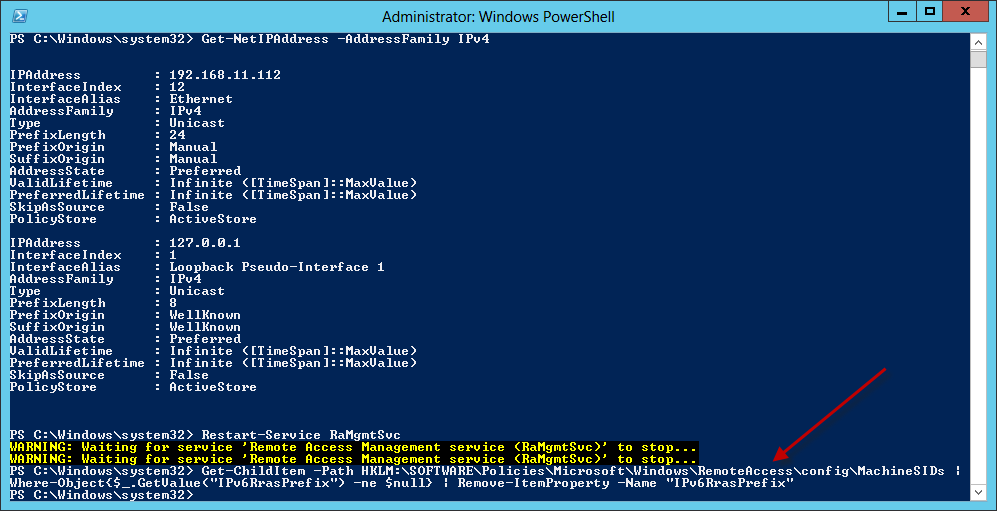
Next, we need to remove an IPv6 Prefix from a registry key. Again you can do this from PowerShell.
Get-ChildItem -Path HKLM:\SOFTWARE\Policies\Microsoft\Windows\RemoteAccess\config\MachineSIDs | Where-Object{$_.GetValue(“IPv6RrasPrefix”) -ne $null} | Remove-ItemProperty -Name “IPv6RrasPrefix”
Next is Step 4c. Which we can ignore for the time being* will explain later.
We need to copy some files now. Open Windows Explorer and navigate to C:\Inetpub
Copy the contents of the WWWRoot folder to C:\Program Files\Windows Server\Bin\WebApps\Site\InsideOut Folder.
You also need to copy the C:\Program Files\Windows Server\Bin\WebApps\Site\Default.aspx file to the InsideOutfolder.

Now, we need to go back into the Remote Access Management console, go to Configuration. Notice that the details pane is like a little network map, each object has a step number associated with it. We need to look at Step 3.

Click on Edit, and then the Infrastructure Server Setup wizard starts. You must click on browse, and find the Server Certificate we created earlier for ‘DirectAccess.tr.local’.
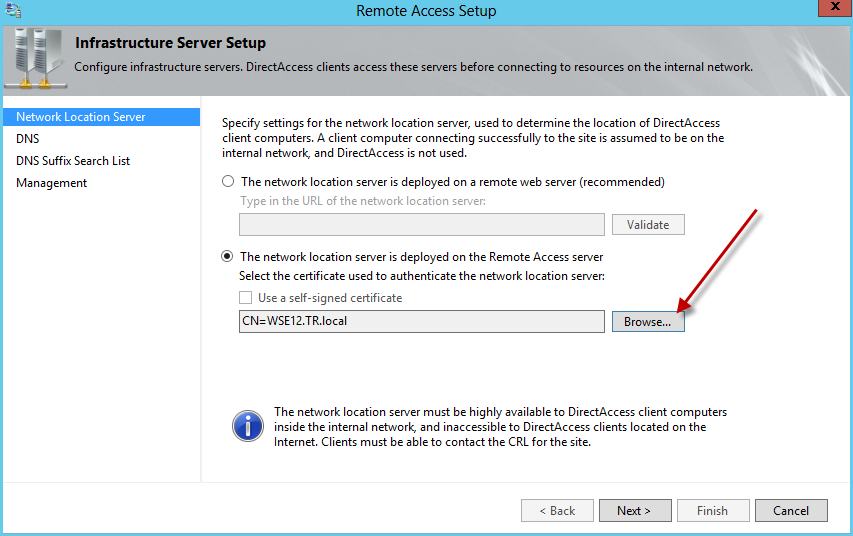
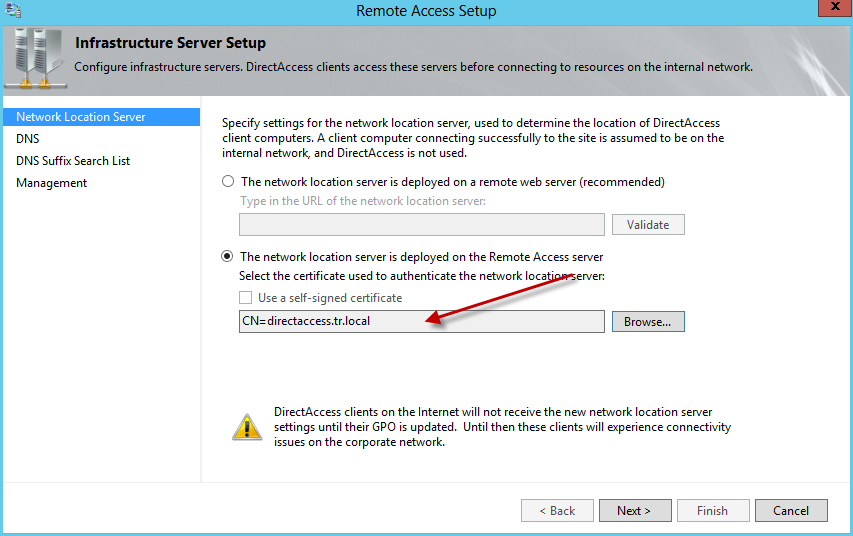
Once that is selected, click next and complete the wizard leaving the other settings as they are.
Next we need to add another registry key. The documentation on TechNet is again, a little unclear here, and actually caused me to have a lot of problems.

The steps say to create a new Registry item, named ikeflags. No problem there. Then it says to modify the value to 8000 then set the type to Hex. Doing this causes the Hex value to be the Hex equivalent of 8000 (decimal). The problem with that is that you get the wrong number.
8000 (Decimal) = 1F40 (Hex)
But what we actually want is..
32768 (Decimal) = 0x8000 (Hex)
So, given that, i thought it would just be easier to use…. you guessed it.
You can do this very easily through PowerShell using the following command.
New-ItemProperty –Path HKLM:\System\CurrentControlSet\Services\IKEEXT\Paramters –Name ikeflags –PropertyType DWORD –Value 32768
Next we will be editing some Group Policies.
Microsoft currently have a PowerShell command suggested here to help with this step, the problem is, it doesn’t work., at least it didn’t for me.
The command published is this:
Get-NetIPAddress -InterfaceAlias IPHTTPSInterface | Get-NetIPAddress -PrefixLength 128)[1].IPAddress
The eagle eyed amongst you will notice a random ) after the PrefixLength of 128. This causes the command to fail, indeed removing it also causes it’s own problems. I can’t work out what the correct command is meant to be. So i would suggest you use this command instead.
Get-NetIPAddress –InterfaceAlias IPHTTPSInterface –PrefixLength 128 | ForEach { $_.IPAddress }
This will give you the relevant IP Addresses you need to use in the following two GPOs.

So given those IP Addresses, we can now edit our GPOs. Open up Group Policy Management from the Administrative tools folder.
Expand Your Domain, and find the GPO named ‘DirectAccess Client Settings’
Right click this, and choose Edit.
Under Computer Configuration, Expand Windows Settings, and click on Name Resolution Policy.
In the details pane, scroll down and click on the Policy that matches your internal domain suffix (ie .domain.local)
Click on Edit.
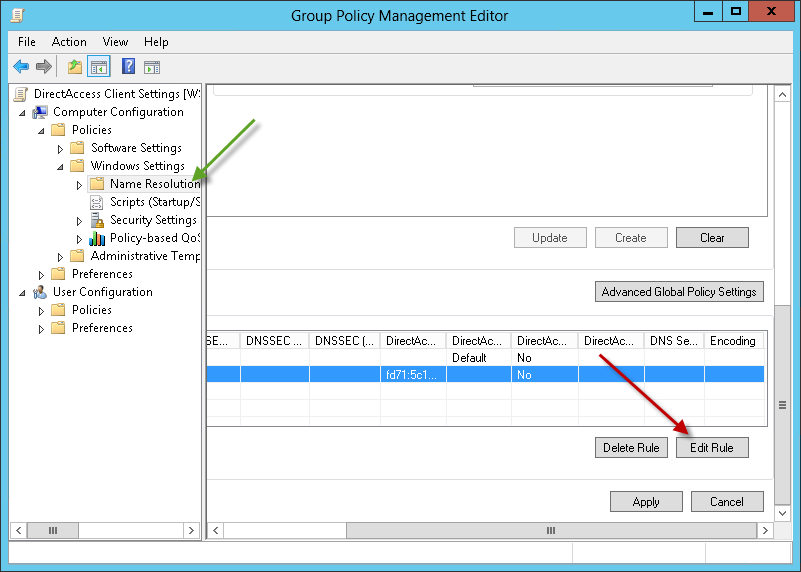
Scroll up slightly and go to the ‘DNS Settings for DirectAccess’ tab.
You will see an IPv6 Address is defined, but we need to replace this with the addresses we retrieved from PowerShell a moment ago.
Simply click on Add, and enter the addresses, then select the pre-existing one and remove it.

When you have done that, click on Update.
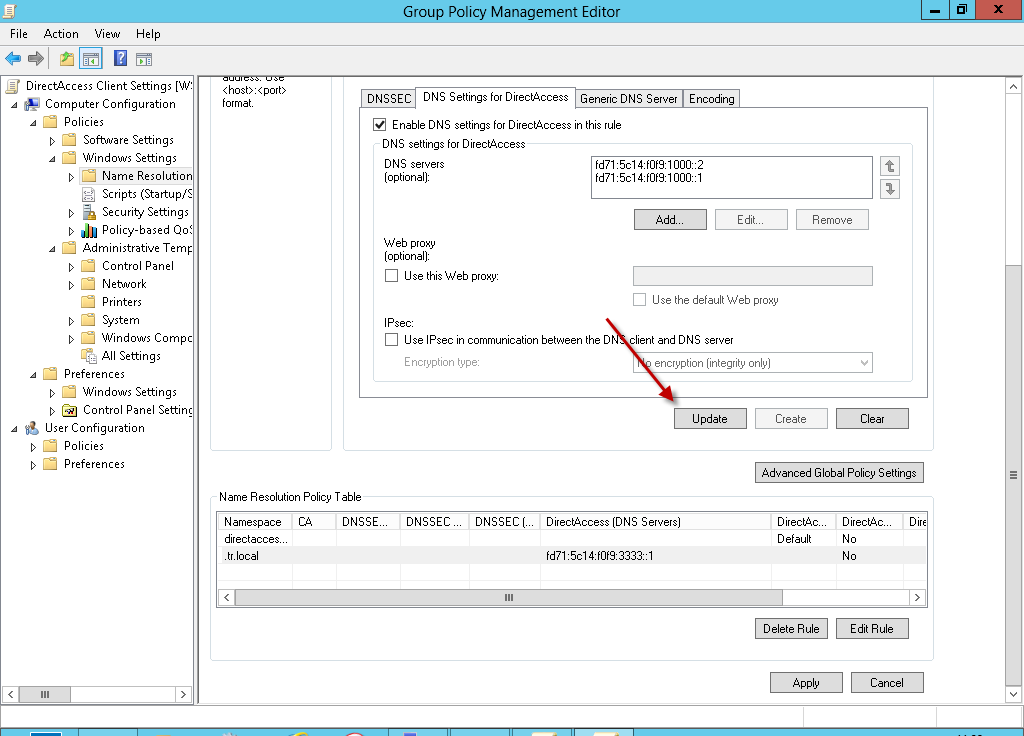
You will notice that the DNS Server addresses update at the bottom of the details pane.
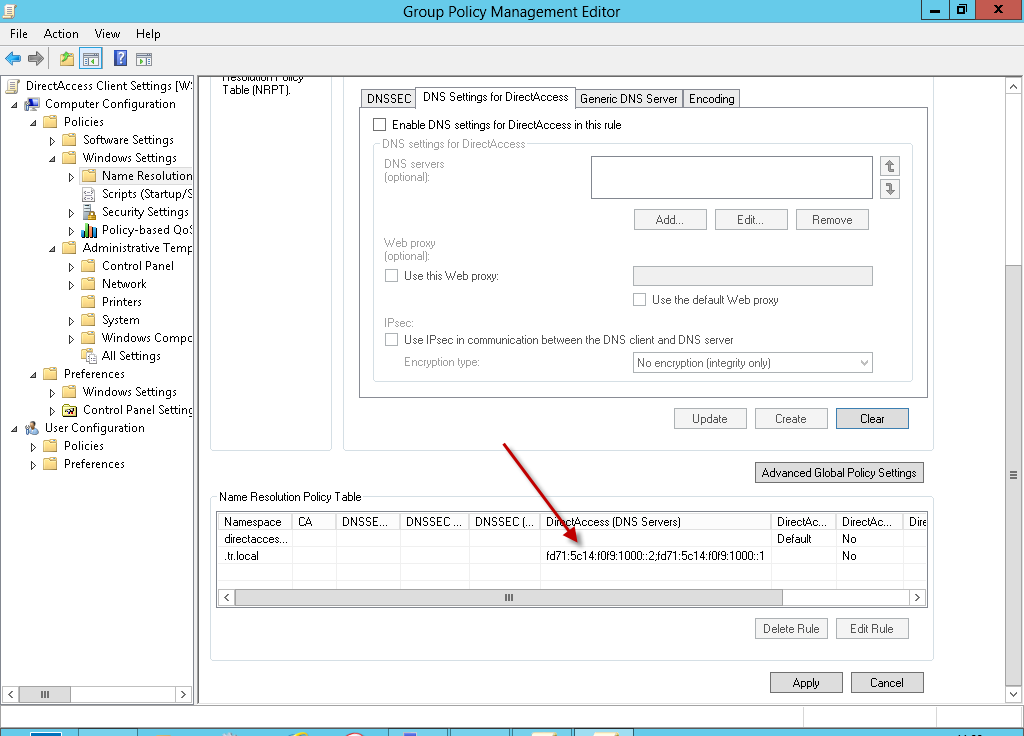
The next Policy we need to edit is the ‘DirectAccess Server Settings’ policy.
We need to expand Computer Configuration, Windows Settings, Security, Windows Firewall w/Advanced Security.
Find the ‘Inbound Rules’ and you will see we have 4 rules defined.
We need to edit the middle two, Domain Name Server (TCP –In & UDP-In)
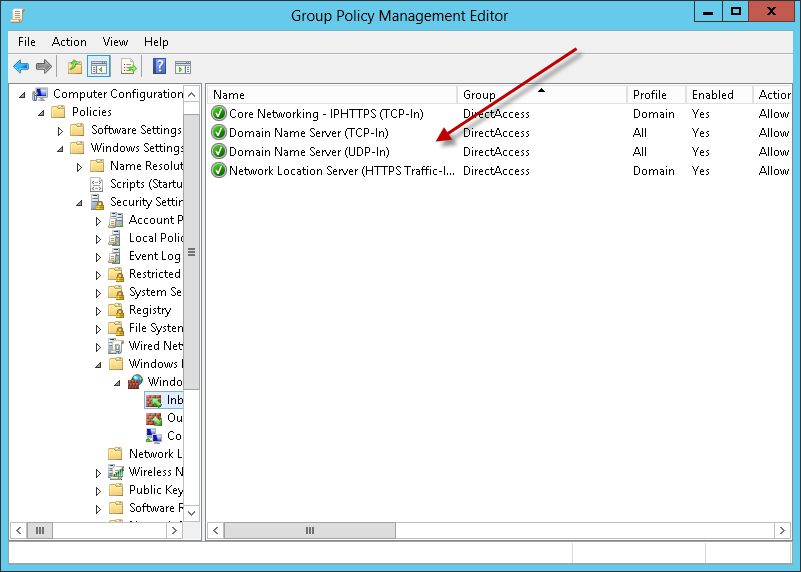
Right click these in turn, and go to properties, then the scope tab. Remove the address that is present, and add the IPv6 Addresses from the previous step.

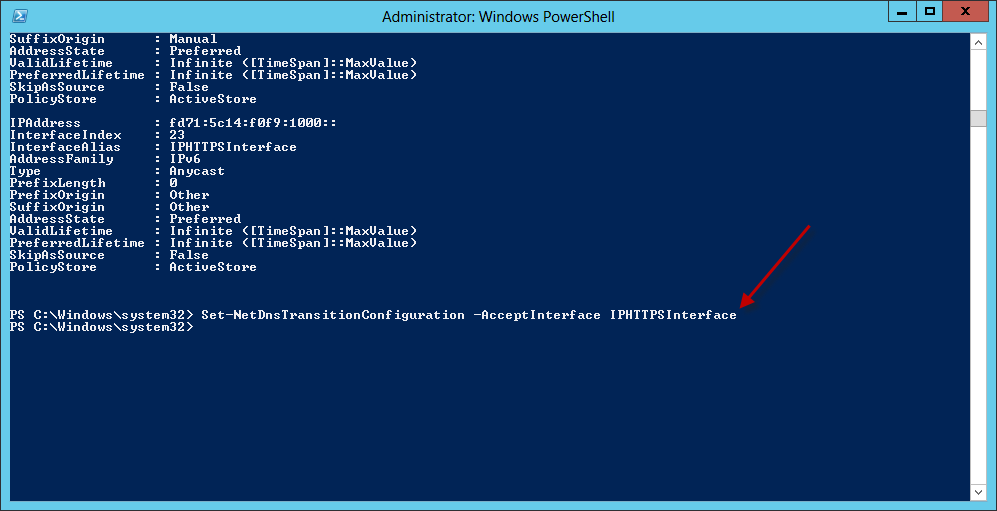
Next we will use another PowerShell command to change DNS64 configuration to listen on the DirectAccess interface…
Set-NetDnsTransitionConfiguration –AcceptInterface IPHTTPSInterface
..and yet more PowerShell.
You see, people mocked me when i stood up and said PowerShell was important, well, whose laughing now eh?
The following command relates to your own internal IP address for the Essentials Server, so replace 192.168.11.112 with whatever is relevant to your server.
Set-NetNatTransitionConfiguration –IPv4AddressPortPool @(“192.168.11.112, 6001-6601”, “192.168.11.112, 6603-47000”)
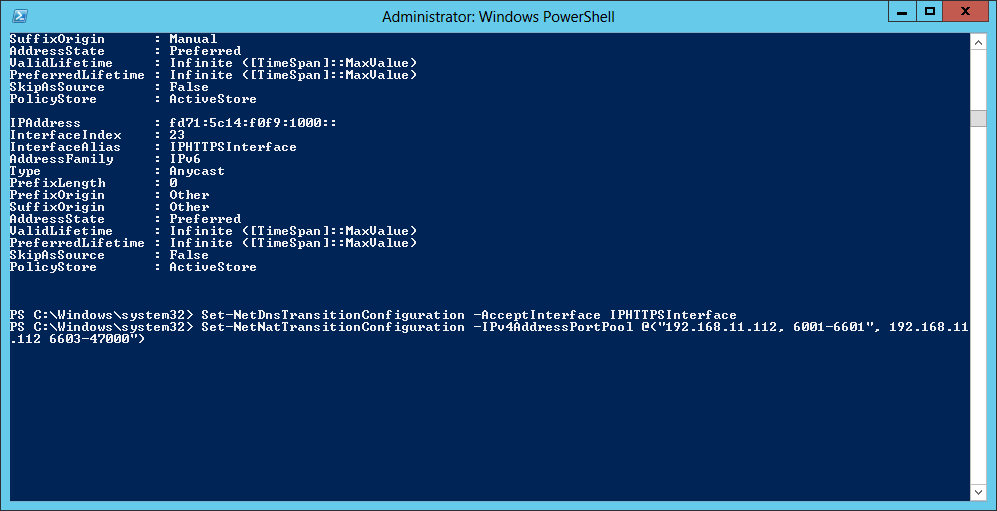
Make sure you have the syntax exactly right, or it does not work so good.

Now, the final PowerShell command.
Restart-Service WinNat
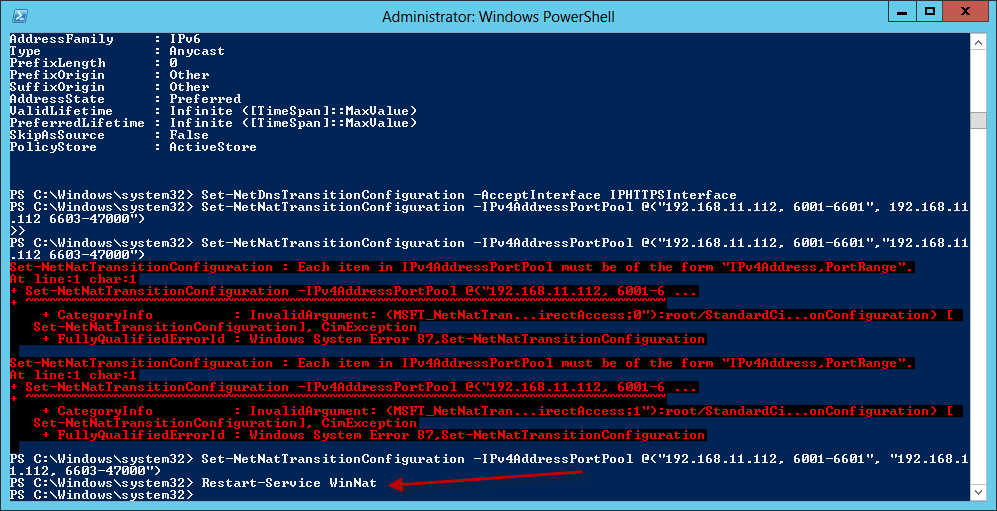
That’s it. That was the final piece of configuration to get your Essentials Server setup for DirectAccess.
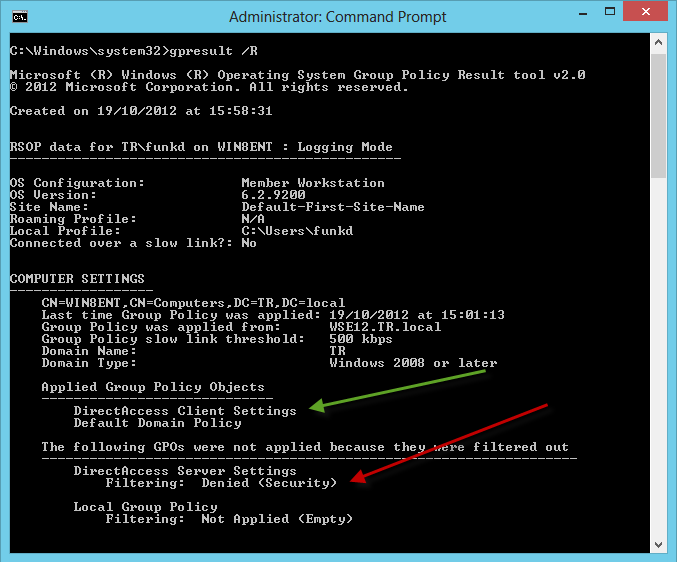
At this point we can make sure our Windows 8 computer accounts are members of the DirectAccessComputers group, make sure the GPOs are updated, and then take them off site and we should have DirectAccess.

I love this picture, from the Windows 8 Start screen. I am using it here to signify being out of the office.
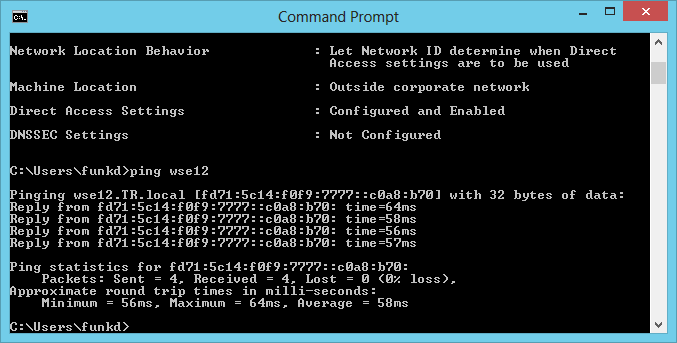
So, assuming i am indeed out of the office i can run the following command to check my DA status.
NetSH DNS Show State

As you can see above, it is showing that i am Outside the corporate network. Great.
I can also verify connectivity with a Ping.. As you can see the response is from the IPv6 Address of my server.
Now the real test, can i open up a folder from the Server?
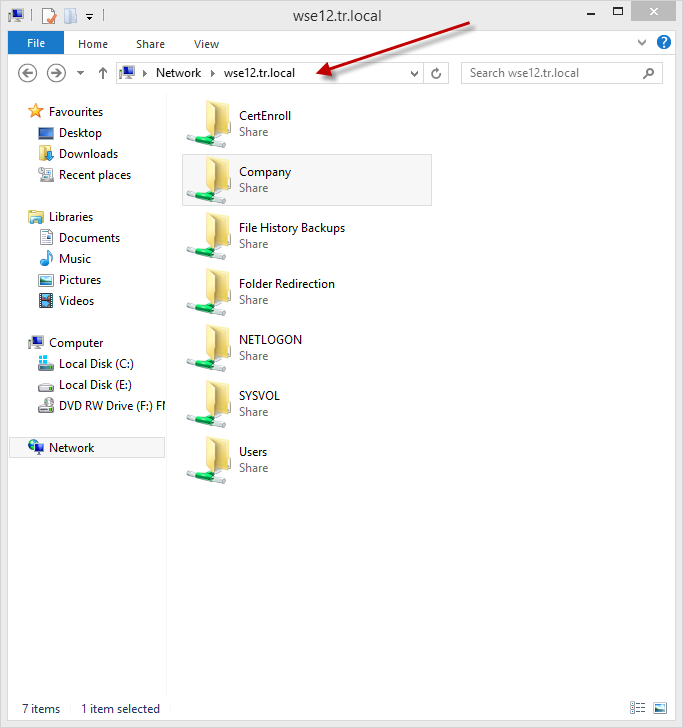
Yes i can!
Enjoy the brave new world of DirectAccess.
*I mentioned earlier about step 4c. There appears to be a problem in the current build relating to enabling Windows 7 Clients, and Computer Certificate authentication. Microsoft are aware and we expect a resolution soon i will update this post with the relevant steps when they are confirmed. I also believe all the current problems on the official documentation will be resolved shortly and are probably only erroring on my systems as it is me.
 About Robert Pearman


 Title (Required)
Is there anything that needs to be done to the Windows 8 Domain Joined client for Direct Access to work? Thanks for this guide looking forward to trying this out!
Just join the domain and apply the group policy.
Hi,
Thanks nice document.
I believe there is a typo error in below command on your document
Get-NetIPAddress –InterfaceAlias –PrefixLength 128 | ForEach { $_.IPAddress }
It should be
Get-NetIPAddress –InterfaceAlias IPHTTPSInterface –PrefixLength 128 | ForEach { $_.IPAddress }
Yep I think you are correct, will update!
Thanks.
Have you created a default user profile for Remote Desktop? If you have good information on process for setting one up for User Profile Disks, it will be helpful.
Following the guide step-by-stop, but when I run the ‘Configure Remote Access’ Getting Started Wizard, it errors out as follows:
Initializing operations before applying configuration
Preparing to apply configuration changes…
Backing up GPOs…
Configuring Remote Access settings
Retrieving server GPO details…
Retrieving DirectAccess server information…
Clearing existing stale configuration settings. This might take a few minutes…
Checking for deployment state…
Checking the specified adapters…
Deploying the Remote Access server behind NAT…
Error: The subject name of the network location server certificate does not resolve correctly. Ensure that the name resolves to the IP address of the internal network adapter of the server.
Finishing operations after applying configuration
Information: Attempting to roll back the configuration…
Did you create the A record to make sure the ssl you created resolves?
Can you please explain why, when I try to configure DA with 2 Network Interface cards the domain name is assigned to both Network interface cards? When I arrive at the step were I run the AD wizard it stops at the point were it gets to the NIC and says it cannot find a NIC without a domain name? Been searching for a few weeks now but just maybe you can tell me why?
thanks you
Why are you using 2 Nics?
one nic with static ip for gateway the other nic for the lan I want to use the lan nic for dhcp but I can use my cisco router for dhcp if I need to. Should I disable on of the nic cards and just use one? how will I assign the static ip if I use one nic and use the server for dhcp?
The Essentials server only supports 1 NIC, and the direct access steps are written for a server with 1 NIC.
Must the client PC be running Win 7 to leverage DirectAccess? Also, is DirectAccess a replacement to the WS2012E VPN dial-up client altogether?
Windows 7 Ultimate or Enterprise or Windows 8 Enterprise.
DirectAccess has a few benefits over a VPN if you have the client os to support it.
I did this on two separate servers. Now workstation backup fails on both networks. On the first, I get the DirectAccess laptop in the DirectAccess group policy implemented. Now the directconnect never connects while on a remote network. The laptop also never shows up with a domain network profile, just a private network profile while connected on the same lan subnet as the server.
What OS are those clients please?
Win 8 Enterprise 64
Use the netsh dnsclient show state command to display the Name Resolution Policy Table (NRPT) options. The determined network location is displayed in the Machine Location field (Outside corporate network or Inside corporate network).
http://technet.microsoft.com/en-us/library/ee624058(v=ws.10).aspx
It sounds to me like maybe those clients think they are outside the LAN.
Use the command above to verify, then troubleshoot as required.
This computer show up as a private network machine after the new policy kicks in. I cannot get it to show up as a domain computer. Is there a way to toggle over to a domain network computer as we do between public and private networks? It shows up on the local wired subnet. I removed configuration setting @ the remote access console, then had to unjoin then http://server/connect to rejoin the domain to undo the inability of the computer to sync with Active Directory after the firewall policy was removed.
I have a very limited number of drive bays in my Windows Server 2012 Essentials box… I have 2 additional NIC’s installed to accept iSCSI connections coming from 2 NAS devices (One for client backups and file histories and one for general file storage). They must be connected via iSCSI so the Essentials box thinks they are physical drives so I can move the “ServerFolders” directory to them. The iSCSI NIC’s are assigned static 10.* IP’s while my normal domain NIC is assigned a 192.168.* IP. Any chance I could get DirectAccess working without some of the issues other folks are running into? I hope not since my iSCSI NIC’s are assigned none routable IP’s per iSCSI best practices.
/cheers
Your scenario is slightly different, in that you are using those NICs to connect to iSCSI not trying to use NAT on the Essentials box.
I dont see why that configuration shouldn’t work, so i would try it. If it doesnt work, disable the other NICs until it is configured and working, and then re-enabled them.
Do I understand correctly that DirectAccess will not work from a Windows 7 Ultimate client? If so, is anyone aware of the issue(s) that prevent this?
I’m actually just talking about this with some people.
It worked in the beta, and we have been waiting for a fix, but now wondering if there will be one.
So it’s only known to work with Win 8 Pro currently, correct?
Does the client PC establish a DA “tunnel” upon login or must it be initiated by the EU?
BTW – I just stumbled upon this Win 7 fix. Does it address the issue you’re speaking of?
http://social.technet.microsoft.com/Forums/en-US/winserver8setup/thread/d5c3a587-850e-4321-bd62-6a1ef038b72f
Not sure that it does no.
The issue is with the DirectAccess wizard I can’t remember exactly but it relates to configuration of a certificate on the server, will check today.
In answer to your other question, no.
Windows 7: Ultimate / Enterprise
Windows 8: Enterprise
Hi community,
maybe you can help me! I set up Windows Server 2012 as DirectAccess Server 2012. Everything is working fine for a unknown time (all marks are green) and suddenly IP-HTTPS-Listener and NETWORK LOCATION SERVER changes to status “unhealthy” and I get an error. At this time it’s not possible to go in the internet at the Server, although the server is reachable from outside (this is absolutely strange). But the most exciting thing about it is that the server goes back to healthy status after a unknown time again.
I could not find any info about this behaviour for Windows Server 2012, cause therefore the OS is too new. Also other blogs, communities etc. didn’t give reasons for that.
Maybe you can do it!
Yours Chris
PS: although the directaccess server is in error, you can connect1
On your server, do you have it set to use Root Hints for DNS or are you using DNS Forwarders?
hi, I am using Forwarders
Running Windows Server 2012 over here. I like the walk-through but whenever you have to change registry entries to “work around” something, that’s when things get messed up especially on the “security” side of the world. Just saw a helpful video on a full Direct Access setup from start to finish. Give yourself an hour to watch the video, then give yourself at least a full day, maybe even 2 days to get Direct Access configured and working. Anything under that is unrealistic and probably will result in reckless behavior in trying to get this all to work. In the video walk-through this admin has a Certificate Authority, Direct Access Server, Clients on mobile 3G internet to test the outside connection to the inside network. It may help everyone here who may have questions.
The process for DA on full S12 may differ slightly to what is required for Essentials.
great guide,
some typos?
original
C:\Program Files\Windows Server\Bin\WebApps\Site\InsideOut
should be
C:\Program Files\Windows Server\Bin\WebApps\Site\InsideOutside
original
New-ItemProperty –Path HKLM:\System\CurrentControlSet\Services\IKEEXT\Paramters
should be
New-ItemProperty –Path HKLM:\System\CurrentControlSet\Services\IKEEXT\Parameters
Thanks, need to update these at some point with the new UR an Windows 7 fixes.
http://support.microsoft.com/default.aspx?scid=kb;en-us;2781267
i see the UR rollup says it only fixes the win7 direct access issue if direct access hasn’t already been installed. do you know how to retroactively fix the issue?
Currently – no.
I am looking at the steps required at the moment.
Just enabled the server side DirectAccess settings on my WS2012e box AFTER applying WS2012e UR1. I’m particularly interested in setting up a single, remote client PC (family member) for DA access. The client PC is running Win 7 Ultimate x64.
However, right now the client connector has been installed on this PC using the non-domain-join approach. Must I uninstall the connector from the client and re-install it remotely over internet using a remote domain join?
Once completed, how do you know that a DA connection has been established from client PC to WS2012e box?
You must be domain joined for DA to work.
Perhaps it would be too easy for me to upgrade my family client PC to Win8 :-) At any rate, this site appears to outline how to get DA and Win 7 working.
http://blogs.msdn.com/b/canberrapfe/archive/2012/07/12/simple-direct-access-setup-with-windows-server-2012-rp.aspx
OK – I give up on Win 7. Couldn’t even get this “simple” approach to work.
http://syscomlab.blog.com/2012/09/how-to-get-windows-7-to-work-with-directaccess-server-2012/
My guess is that was written on ore RTM media, before the UTF-8 bug was introduced.
Unfortunately, I believe these changes to my WS2012e may have also rendered my HTTPS RWA Access unusable. Am going to restore from a prior server backup and upgrade this client PC from Win 7 Ultimate to Win 8 Pro this weekend.
DirectAccess is only available on Windows8 Enterprise, just so you are aware.
Any success to fix on windows 7 client IPsec Certificate for DA on WSE2012 after installing Update Rollup 1, I tried but not successful
No, I gave up on Windows 7. Made so many updates to my WS2012e box in hopes of enabling DA for Win 7 that I had to restore the server from a prior backup.
Does Windows 8 PRO support DA? Or ONLY Enterprise?
BTW, this is supposed to be THE guide for getting Win 7 DA to work, but it didn’t work for me. If anyone else has success let me know.
http://syscomlab.blog.com/2012/09/directaccess-for-windows-server-2012-guide/
This Guide is Based on Windows Server 2012( std. Data etc) not for Windows Server 2012 Essentials if you are looking working guide for windows 7 clients with windows server 2012 i have made step by step video on this.
Windows Server 2012 Direct Access with Basic PKI Configuration and Windows 7 Clients
Are you able to adapt this for WS2012 Essentials and Win 7 DA clients? Thanks!
Not yet, even after updating Update Rollup 1 for Windows Server 2012 Essentials. still trying to figure out the way to work with windows 7 clients.
The steps posted above, do not include the windows7 specific steps, which are to enable certificate authentication (and windows 7 access) which you do by editing step 2 (i beleive, though not in front of a machine to check)
The issue with Essentials, as mentioned is the root CA cert is not in the correct format to be used with DA causing ‘set-daserver -ipsecrootcertificate’ to fail with ‘the data is invalid’
I finally got this work “Enable Direct Access on Windows Server 2012 Essentials for Windows 7 Clients”
I have created video on how to enable and Configure Direct Access on Windows Server 2012 Essentials for Windows 7 Clients and want to share with all.
Hope this will help.
Need some help. On my Win 8 Enterprise client I installed WS2012e connector and joined my home domain. No problem. On WS2012e server, I created the DirectAccessComputers group and added both server\user and client-pc (computer) to this access group. Then on the Win 8 client, I issued a GPUPDATE and GPRESULT /R and it says DirectAccess Client Settings filtered out denied (GPO).
The Windows 7 issues are supposed to have been fixed, but so far my testing does not support that.
In theory UR 1 updates the CA certificate and fixes the UTF8 encoding issue, again not in my testing so far.
I am trying to work with Microsoft on this issue, so far it has been tough going.
I finally got this work “Enable Direct Access on Windows Server 2012 Essentials for Windows 7 Clients”
I have created video on how to enable and Configure Direct Access on Windows Server 2012 Essentials for Windows 7 Clients and want to share with all.
Hope this will help.
robert, have you been able to discern the fix from Gagans video?
Good question.
The answer is yes and no.
Gagans video rightly shows how to ‘preload’ UR1 into Essentials before installing the Essentials ‘roles’
What this does is apply a fix inside UR1 to change the RootCA Certificate to be in a non ‘UTF-8’ character set.
This is what has/is causing the Set-DAServer -ipsecrootcertificate issue.
For those who have already deployed Essentials, there were two hotfixes published that should have resolved the problem, however in my own testing they were not working although i have to say i have not really given it a huge amount of attention recently. I have worked with the Essentials DEV team to get the hotfixes out there, and also worked with them on the UR1 issues.
The problem we had is that the Dev team were expecting UR1 to just be installed during install, but i demonstrated to them almost exactly what Gagan has in his video.
I still am yet to go through a pre-existing Essentials 2012 running DA and apply the UR/Hotfixes and see how that behaves.
Has anyone witnessed odd application behavior after implementing DA on WS2012e? For example, now, even with windows firewall temporarily disabled, I am unable to use Adaptec Storage Manager to monitor my hardware RAID card. It returns a cannot connect to port 34,571 error (default port). This is when attempting to load Adaptec Storage Manager on the localhost even with antivirus disabled.
Ill assume that is on your server?
DirectAccess firewall configuration should not have affected that, also I don’t think there is a port conflict with that port.
Are you able to see from netstat if anything is listening on that port?
Yes. You’ll notice immediately upon implementing the DA changes on WS2012e side, the windows firewall settings screen changes to ‘for your security, some settings are managed by your system admin’. Something peculiar occurs w the WFW that even appears to be blacking WS2012e client PCs from contacting the WS2012e box for client restores. Just noticed this morning.
What is the purpose of this command? Particularly the port ranges 6001-6601 and 6603-47000. I use many ports between 6603-47000 for other apps. For example, Adaptec Storage Manager users 34571, etc.
Set-NetNatTransitionConfiguration –IPv4AddressPortPool @(“192.168.11.112, 6001-6601”, “192.168.11.112, 6603-47000”)
http://technet.microsoft.com/en-us/library/jj204618.aspx#BKMK_ExemptPort
You can exclude ports if you wish.
Am determined to get this to work. Now have a server restore point just before making DA changes. Hope others get an opp to try this. Once steps followed, local clients unable to perform a client restore from WS2012e server also.
Check the windows firewall for the ports used for client backup, then exclude those as well.
If your backups fail for machines that are not using Direct Access, you can fix it by running the following commands (change 192.168.11.112 to your server IP) in an admin powershell:
Set-NetNatTransitionConfiguration –IPv4AddressPortPool @(“192.168.11.112, 6001-6601”, “192.168.11.112, 6603-8911”, “192.168.11.112, 8913-47000”)
Restart-Service WinNat
The documented command should work to bypass 6602, thats the one above, and the one Microsoft published on there site.
You need to make sure there is not a typo in your port range.
Cool – I posted this in another forum. Looks like it was copied. Note that port 6602 required for a WS2012e client to report it’s online status back to the server. Also port 8912 is require for the actual backup task itself.
I believe Microsoft have updated their steps to start at port 10,000 – which is probably a safer start point.
What are these ports really used for? And how many are actually needed? I’ve had to make more exceptions than just port 6602 and 8192 on my server due to conflicts w/ my Adaptec RAID card, etc. Despite allowing applications in WFW, that’s not sufficient, as it also requires this. Adaptec raid manager uses 8443, 34570-34580.
Set-NetNatTransitionConfiguration –IPv4AddressPortPool @(“192.168.0.5, 6001-6601”, “192.168.0.5, 6603-8002”, “192.168.0.5, 8004-8442”, “192.168.0.5, 8444-8911”, “192.168.0.5, 8913-34569”, “192.168.0.5, 34581-47000”)
Been using DirectAccess for a while now and LOVE it. Perhaps the most convenient feature of WS2012e. However I encountered an odd issue.
My home domain is called MILES.local. From within my LAN, I can RDP to client PCs by their complete domain name: client1.MILES.local, server.MILES.local, client2.MILES.local, etc.
However I am unable to access my DA client (DirectAccessClient) by either DirectAccessClient.MILES.local OR just DirectAccessClient via RDP or ping.
When I review the system properties of DirectAccessClient, it correctly shows the full PC name as DirectAccessClient.MILES.local. Is there any way to fix this?
Id imagine this is related to you using the IPv4 Address rather than the IPv6 Address, and then, after that will be related to the firewall policy on the DA machine.
To be honest, i dont even know if it is intended to work that way, given it is a tunneled connection into the network via the Server – you would have to have a similar tunnel back to the client, or a way of getting into that tunnel. I think the best you could hope for is to be able to communicate with that client via the server.
Still loving DA. Tried enabling NIC teaming under WS2012E so my server would failover to NIC #2 if NIC #1 went offline. Unfortunately, it doesn’t appear that DA works once NIC Teaming is enabled. I even tried to assign the ipv6 address to the NIC team without success. Will this process work if you setup the NIC team before following the guide?
http://technet.microsoft.com/en-us/library/jj730381.aspx
“The Windows Server 2012 Essentials networking wizards do not support network adapter teaming.
Some hardware manufacturers provide network adapters and drivers that feature fault tolerance technology. You can use fault tolerance technology to group network adapter ports for a connection to a single physical segment. This is known as “network adapter teaming.” If connectivity through one port does not work, another port is automatically activated to handle the connection. This process is transparent to the operating system and to other devices on the network.
The Windows Server 2012 Essentials networking wizards such as the Remote Web Access wizard do not support network adapter teaming because it is a scenario that is not typically used in a small business environment.”
I followed this guide step-by-step and still cannot get it to work. Actually I did it twice because I decided to wipe and reinstall WS12e (because I removed configuration settings from RAM and the Essentials dashboard would fail on the AnywhereAccess). For some reason it is not working. I even opened up port 62000 based on some other forums suggestions and technet documentation for single NIC implementations, when all that should be needed is 443. RWA and SSTP VPN work. The client knows whether it’s inside or outside the network. I have the NLS cert setup but the issue I’m running into is:
DirectAccess connectivity status for user: DOMAIN\Daniel is
Error: Corporate connectivity is not working. Windows is unable to contact the DirectAccess server. 7/5/2013 19:34:23 (UTC)
——————————————————————————–
Probes List
HTTP: http://directaccess-WebProbeHost.domain.local (Fail)
——————————————————————————–
DTE List
PING: fd77:79d:51de:1000::1 (Fail)
PING: fd77:79d:51de:1000::2 (Fail)
And when I run Get-DAConnectionStatus, I get this:
Status : Error
Substatus : CouldNotContactDirectAccessServer
I have ports 80, 443, 62000 and 41 forwarded from my NAT router to the server. I’m out of ideas. I’d like to get this up and running on only 443.
Any suggestions?
Well you certainly only need 443 open externally.
Do you have all the latest hotfixes installed? and update rollups for the server?
The comments on this article offer some more up to date detail, i have not had time to go back through and amend the Windows 7 specefic steps (Windows 8 should work as written)
Which OS is your client?
I’m running Windows 8 Enterprise. I agree 443 is all that is supposed to be needed. Port 41 isn’t needed so I removed it from forwarding as well as 62000 which is supposedly used by the NLS internally. DirectAccess has 3 connection methods: Teredo, 6to4 and IP-HTTPS. IP-HTTPS is the only type being used in this scenario for a single adapter behind a NAT router. I have the update rollup installed as well as the UTF8 hotfix for the root certificate. I get no certificate errors opening up the remote website as my user account or as SYSTEM using psexec outside my network. I can’t explain why I don’t have a connection. The DirectAccess logs actually look fine to me.
have you investigated the failures you mentioned?
Probes List
HTTP: http://directaccess-WebProbeHost.domain.local (Fail)
——————————————————————————–
DTE List
PING: fd77:79d:51de:1000::1 (Fail)
PING: fd77:79d:51de:1000::2 (Fail)
Are those IPs Valid – why is the HTTP probe failing?
So some more troubleshooting. I’m getting connections now, but I can’t access the name of my Windows 2012 Essentials server. I can access it by going to the name \\directaccess, but not by it’s actual name, crossfire. As soon as I defined other records in DNS for the devices on my network I could access them. On my DirectAccess client, if I modify the hosts. file in \windows\system32\drivers\etc and add the IPv6 address and the server’s name I can access it. The name in DNS is defined by it’s IPv4 and IPv6 address, yet I don’t understand why I don’t get resolution to the server.
What is your name resolution policy in the DA GPOs configured like?
I didnt have any of these issues when i set this up.
I made no changes from yesterday and now it’s connecting, which is really weird because I made no changes to the service…. but now I have no name resolution… to my resources.
DirectAccess connectivity status for user: DOMAIN\Daniel is
Connected Remotely: Connected to the network through DirectAccess. 9/5/2013 18:22:2 (UTC)
——————————————————————————–
Probes List
HTTP: http://directaccess-WebProbeHost.DOMAIN.local (Pass)
——————————————————————————–
DTE List
PING: fd77:79d:51de:1000::1 (Pass)
PING: fd77:79d:51de:1000::2 (Pass)
I can ping directaccess-WebProbeHost.DOMAIN.local and ping fd77:79d:51de:1000::1 and fd77:79d:51de:1000::2 and browse the server via \\directaccess.DOMAIN.local and see shares, but not via the server’s real name \\crossfire.DOMAIN.local. I think I have some sort of DNS issue.
Why after completing this process successfully, does the WS2012E Server Manager still prompt you with the FLAG icon @ top right of screen to:
Configuration completed for DirectAccess and VPN (RAS) at Server.
Open the getting started wizard.
Even if I X (close) this message, it seems to be recurring. I can ignore it but despite opening and cancelling out of the Getting Started Wizard (as not to break any functionality), it persists.
I just noticed that after installing the latest WS2012E UR2 last night, my DirectAccess client is unable to receive the new connector update. If I try to connect to the server via http://server/connect or http://192.168.0.5/connect it cannot locate the server. Cannot even ping the ipv4 IP of 192.168.0.5 which must be related. Have you encountered this?
I have also seen clients unable to connect via DA once UR2 was applied.
DA services all start fine, and “netsh interface httpstunnel show interfaces” on the client shows as active, but neither the server or client can ping each other.
I have configured DirectAccess on my Server 2012 Essentials box and most of it works great – I can remotely access the server via RDP and the default IIS website on port 80.
However, I can’t access anything that uses other ports. For this example, the Team Foundation Server website. The only way to access it is by accessing http://localhost:8080/tfs on the server directly – even when using http://servername:8080/tfs or http://192.168.1.100:8080/tfs won’t work.
I think I’ve narrowed it down to the “DirectAccess Server Settings” Group Policy that is created when configuring DirectAccess. When I disable the link for this GPO, the TFS site works again, but the default IIS site stops working (but RDP still works).
I already have rules in the firewall on the server for TFS and before enabling this Group Policy (so before configuring DirectAccess) I could access both sites.
Does anybody have any suggestions for things I can change to allow access to both?
I can’t seem to get any of my clients to connect. They are stating that they cannot authenticate and directaccess shows nothing in the client status.
i had a case open with microsoft on this issue, but i actually gave up with them. They apparently are ‘reviewing it in their lab’
make sure you follow their technet article as the steps in my article are out of date.
I tried following those guides. When I do it that way I get probe DNS issues and they cannot be resolved. The only way I managed to fix that was the part of your guide where it says to change where DNS64 listens and in the end that gave me an authentication error. So I am dead in the water at the moment.
yep. same here. have been promised an update from MS on monday.
Would you mind sharing the details on Monday? I am more than a little annoyed with DA… I have many clients using the technology to access resources and now it’s beyond broken. Also, I appreciate you following up to my messages. Thank you!
understand your frustration, and i share it. will share any news i have.
I agree that DA is one of the coolest features of Windows Server 2012 but have unfortunately found it to be rather temperamental. After working flawlessly for nearly 2 months, I had 2 DA clients stop connecting to my WS2012. No firewall changes or anything. Random. I even tried rolling back the WS2012 to an earlier server backup without success. Seems DA still needs some work.
Hello,
I’m getting error like this: Corporate connectivity is not working. Windows is unable to contact some remote resources due to network authentication failures.
Not able to find what’s wrong for the second day… What could I check?
Here is my config DA server config: http://www.pagalba.info/da_config.pdf
yes a couple of us have open cases with microsoft pss regarding this. i would encourage you to open one.
I’ve managed to connect. BUT it’s working partialy – i’m able to reach file shares, server via RDP (but only using hostnames). I’m unable to connect to servers using IP, also local website not opening.
I believe this has something to do with DNS.
I’ve set adresses in Name resolution policy which i got using command “Get-NetIPAddress –InterfaceAlias IPHTTPSInterface –PrefixLength 128 | ForEach { $_.IPAddress }” following Your tutorial.
Now these two addreses are failing:
DirectAccess connectivity status for user: BRIDGE\rimvydasv is
Connected Remotely: Connected to the network through DirectAccess. 29/8/2013 11:55:19 (UTC)
Probes List
HTTP: http://directaccess-WebProbeHost.bluebridge.local (Pass)
HTTP: https://blubas2.bluebridge.local/ (Pass)
DTE List
PING: fd59:a31c:2f03:1000::1 (Fail)
PING: fd59:a31c:2f03:1000::2 (Fail)
Any ideas what could be wrong here?
there are several open cases with MS about odd issues with DA on essentials. i would advise anyone suffering to post in the technet forum and call pss if they can.
I moved to Essentials R2 and re-followed these instructions and my prior issues no longer exist.
That is good to know, however i would re-iterate that the issues we have faced with R1, also apparently do not occur on all instances, and those where it did, it did not occur straight away. Let’s hope it does not show up again, or perhaps we should, so we get a fix?
I have DirectAccess up and running on Win2012 at least to the point that I can ping and connect to anything via FQDN, but I cannot access anything via ip address. For example, I can access archiver.mydomain.local but cannot access or ping via IPv4 10.xxx.x.xxx.
Shouldn’t this be handled by the DA server? This is a hassle for admins as we connect to switches and other various devices via IPv4.
Any ideas on what I may have missed?
have you tried to add an A record in DNS for the switch, and see if you can ping it by the full fqdn?
whilst the tunnel does exist, it is only configured to intercept traffic for domain.local -, granted i dont know for sure, but it is not the same as tcp.ip routing for a normal VPN.
I haven’t had any issues yet with R2, but I also use SSTP as a fall back for my systems that don’t have Windows 8 Enterprise… here’s some scripts I wrote to simplify the deployment of SSTP…
I was having this issue with DirectAccess as well in 2012 Essentials, but I re-installed using 2012 Essentials R2 and haven’t seen an issue since. But not all my clients are Enterprise (Windows 8 Core), so I have to use SSTP as a backup.
I’ve used a method to simplify installing my certificates. I use CACert.org because it’s free, but their CRL (Certificate Revocation List) is over 6 megs, so I have to disable the CRL check (otherwwise the SSTP VPN connection fails because the file is too big and it times out)…
Powershell version (VPN_CACert_Setup.ps1):
(new-object System.Net.WebClient).DownloadFile(‘http://www.cacert.org/certs/root.crt’, $env:temp + ‘\CACert_root.cer’)
(new-object System.Net.WebClient).DownloadFile(‘http://www.cacert.org/certs/class3.crt’, $env:temp + ‘\CACert_class3.cer’)
Import-Certificate -FilePath ($env:temp + ‘\CACert_root.cer’) -CertStoreLocation cert:\LocalMachine\Root
Import-Certificate -FilePath ($env:temp + ‘\CACert_class3.cer’) -CertStoreLocation cert:\LocalMachine\CA
Remove-Item ($env:temp + ‘\CACert_root.cer’)
Remove-Item ($env:temp + ‘\CACert_class3.cer’)
Set-ItemProperty -Path HKLM:\SYSTEM\CurrentControlSet\Services\SstpSvc\Parameters -Name NoCertRevocationCheck -Value 1
Add-VpnConnection -Name YourDomain.com -ServerAddress remote.YourDomain.com -TunnelType Sstp -EncryptionLevel NoEncryption -AuthenticationMethod Chap,MSChapv2 -SplitTunneling -AllUserConnection
Batch version (VPN_CACert_Setup.cmd) [does not create VPN Connection, no DownloadFile or Add-VpnConnection Equivelant]:
@echo off
echo Beginning import of CACert Certifiates…
rem CACert.org CACert_root.cer
echo —–BEGIN CERTIFICATE—– >>%temp%\CACert_root.cer
echo MIIHPTCCBSWgAwIBAgIBADANBgkqhkiG9w0BAQQFADB5MRAwDgYDVQQKEwdSb290 >>%temp%\CACert_root.cer
echo IENBMR4wHAYDVQQLExVodHRwOi8vd3d3LmNhY2VydC5vcmcxIjAgBgNVBAMTGUNB >>%temp%\CACert_root.cer
echo IENlcnQgU2lnbmluZyBBdXRob3JpdHkxITAfBgkqhkiG9w0BCQEWEnN1cHBvcnRA >>%temp%\CACert_root.cer
echo Y2FjZXJ0Lm9yZzAeFw0wMzAzMzAxMjI5NDlaFw0zMzAzMjkxMjI5NDlaMHkxEDAO >>%temp%\CACert_root.cer
echo BgNVBAoTB1Jvb3QgQ0ExHjAcBgNVBAsTFWh0dHA6Ly93d3cuY2FjZXJ0Lm9yZzEi >>%temp%\CACert_root.cer
echo MCAGA1UEAxMZQ0EgQ2VydCBTaWduaW5nIEF1dGhvcml0eTEhMB8GCSqGSIb3DQEJ >>%temp%\CACert_root.cer
echo ARYSc3VwcG9ydEBjYWNlcnQub3JnMIICIjANBgkqhkiG9w0BAQEFAAOCAg8AMIIC >>%temp%\CACert_root.cer
echo CgKCAgEAziLA4kZ97DYoB1CW8qAzQIxL8TtmPzHlawI229Z89vGIj053NgVBlfkJ >>%temp%\CACert_root.cer
echo 8BLPRoZzYLdufujAWGSuzbCtRRcMY/pnCujW0r8+55jE8Ez64AO7NV1sId6eINm6 >>%temp%\CACert_root.cer
echo zWYyN3L69wj1x81YyY7nDl7qPv4coRQKFWyGhFtkZip6qUtTefWIonvuLwphK42y >>%temp%\CACert_root.cer
echo fk1WpRPs6tqSnqxEQR5YYGUFZvjARL3LlPdCfgv3ZWiYUQXw8wWRBB0bF4LsyFe7 >>%temp%\CACert_root.cer
echo w2t6iPGwcswlWyCR7BYCEo8y6RcYSNDHBS4CMEK4JZwFaz+qOqfrU0j36NK2B5jc >>%temp%\CACert_root.cer
echo G8Y0f3/JHIJ6BVgrCFvzOKKrF11myZjXnhCLotLddJr3cQxyYN/Nb5gznZY0dj4k >>%temp%\CACert_root.cer
echo epKwDpUeb+agRThHqtdB7Uq3EvbXG4OKDy7YCbZZ16oE/9KTfWgu3YtLq1i6L43q >>%temp%\CACert_root.cer
echo laegw1SJpfvbi1EinbLDvhG+LJGGi5Z4rSDTii8aP8bQUWWHIbEZAWV/RRyH9XzQ >>%temp%\CACert_root.cer
echo QUxPKZgh/TMfdQwEUfoZd9vUFBzugcMd9Zi3aQaRIt0AUMyBMawSB3s42mhb5ivU >>%temp%\CACert_root.cer
echo fslfrejrckzzAeVLIL+aplfKkQABi6F1ITe1Yw1nPkZPcCBnzsXWWdsC4PDSy826 >>%temp%\CACert_root.cer
echo YreQQejdIOQpvGQpQsgi3Hia/0PsmBsJUUtaWsJx8cTLc6nloQsCAwEAAaOCAc4w >>%temp%\CACert_root.cer
echo ggHKMB0GA1UdDgQWBBQWtTIb1Mfz4OaO873SsDrusjkY0TCBowYDVR0jBIGbMIGY >>%temp%\CACert_root.cer
echo gBQWtTIb1Mfz4OaO873SsDrusjkY0aF9pHsweTEQMA4GA1UEChMHUm9vdCBDQTEe >>%temp%\CACert_root.cer
echo MBwGA1UECxMVaHR0cDovL3d3dy5jYWNlcnQub3JnMSIwIAYDVQQDExlDQSBDZXJ0 >>%temp%\CACert_root.cer
echo IFNpZ25pbmcgQXV0aG9yaXR5MSEwHwYJKoZIhvcNAQkBFhJzdXBwb3J0QGNhY2Vy >>%temp%\CACert_root.cer
echo dC5vcmeCAQAwDwYDVR0TAQH/BAUwAwEB/zAyBgNVHR8EKzApMCegJaAjhiFodHRw >>%temp%\CACert_root.cer
echo czovL3d3dy5jYWNlcnQub3JnL3Jldm9rZS5jcmwwMAYJYIZIAYb4QgEEBCMWIWh0 >>%temp%\CACert_root.cer
echo dHBzOi8vd3d3LmNhY2VydC5vcmcvcmV2b2tlLmNybDA0BglghkgBhvhCAQgEJxYl >>%temp%\CACert_root.cer
echo aHR0cDovL3d3dy5jYWNlcnQub3JnL2luZGV4LnBocD9pZD0xMDBWBglghkgBhvhC >>%temp%\CACert_root.cer
echo AQ0ESRZHVG8gZ2V0IHlvdXIgb3duIGNlcnRpZmljYXRlIGZvciBGUkVFIGhlYWQg >>%temp%\CACert_root.cer
echo b3ZlciB0byBodHRwOi8vd3d3LmNhY2VydC5vcmcwDQYJKoZIhvcNAQEEBQADggIB >>%temp%\CACert_root.cer
echo ACjH7pyCArpcgBLKNQodgW+JapnM8mgPf6fhjViVPr3yBsOQWqy1YPaZQwGjiHCc >>%temp%\CACert_root.cer
echo nWKdpIevZ1gNMDY75q1I08t0AoZxPuIrA2jxNGJARjtT6ij0rPtmlVOKTV39O9lg >>%temp%\CACert_root.cer
echo 18p5aTuxZZKmxoGCXJzN600BiqXfEVWqFcofN8CCmHBh22p8lqOOLlQ+TyGpkO/c >>%temp%\CACert_root.cer
echo gr/c6EWtTZBzCDyUZbAEmXZ/4rzCahWqlwQ3JNgelE5tDlG+1sSPypZt90Pf6DBl >>%temp%\CACert_root.cer
echo Jzt7u0NDY8RD97LsaMzhGY4i+5jhe1o+ATc7iwiwovOVThrLm82asduycPAtStvY >>%temp%\CACert_root.cer
echo sONvRUgzEv/+PDIqVPfE94rwiCPCR/5kenHA0R6mY7AHfqQv0wGP3J8rtsYIqQ+T >>%temp%\CACert_root.cer
echo SCX8Ev2fQtzzxD72V7DX3WnRBnc0CkvSyqD/HMaMyRa+xMwyN2hzXwj7UfdJUzYF >>%temp%\CACert_root.cer
echo CpUCTPJ5GhD22Dp1nPMd8aINcGeGG7MW9S/lpOt5hvk9C8JzC6WZrG/8Z7jlLwum >>%temp%\CACert_root.cer
echo GCSNe9FINSkYQKyTYOGWhlC0elnYjyELn8+CkcY7v2vcB5G5l1YjqrZslMZIBjzk >>%temp%\CACert_root.cer
echo zk6q5PYvCdxTby78dOs6Y5nCpqyJvKeyRKANihDjbPIky/qbn3BHLt4Ui9SyIAmW >>%temp%\CACert_root.cer
echo omTxJBzcoTWcFbLUvFUufQb1nA5V9FrWk9p2rSVzTMVD >>%temp%\CACert_root.cer
echo —–END CERTIFICATE—– >>%temp%\CACert_root.cer
rem CACert.org CACert_class3.cer
echo —–BEGIN CERTIFICATE—– >>%temp%\CACert_class3.cer
echo MIIHWTCCBUGgAwIBAgIDCkGKMA0GCSqGSIb3DQEBCwUAMHkxEDAOBgNVBAoTB1Jv >>%temp%\CACert_class3.cer
echo b3QgQ0ExHjAcBgNVBAsTFWh0dHA6Ly93d3cuY2FjZXJ0Lm9yZzEiMCAGA1UEAxMZ >>%temp%\CACert_class3.cer
echo Q0EgQ2VydCBTaWduaW5nIEF1dGhvcml0eTEhMB8GCSqGSIb3DQEJARYSc3VwcG9y >>%temp%\CACert_class3.cer
echo dEBjYWNlcnQub3JnMB4XDTExMDUyMzE3NDgwMloXDTIxMDUyMDE3NDgwMlowVDEU >>%temp%\CACert_class3.cer
echo MBIGA1UEChMLQ0FjZXJ0IEluYy4xHjAcBgNVBAsTFWh0dHA6Ly93d3cuQ0FjZXJ0 >>%temp%\CACert_class3.cer
echo Lm9yZzEcMBoGA1UEAxMTQ0FjZXJ0IENsYXNzIDMgUm9vdDCCAiIwDQYJKoZIhvcN >>%temp%\CACert_class3.cer
echo AQEBBQADggIPADCCAgoCggIBAKtJNRFIfNImflOUz0Op3SjXQiqL84d4GVh8D57a >>%temp%\CACert_class3.cer
echo iX3h++tykA10oZZkq5+gJJlz2uJVdscXe/UErEa4w75/ZI0QbCTzYZzA8pD6Ueb1 >>%temp%\CACert_class3.cer
echo aQFjww9W4kpCz+JEjCUoqMV5CX1GuYrz6fM0KQhF5Byfy5QEHIGoFLOYZcRD7E6C >>%temp%\CACert_class3.cer
echo jQnRvapbjZLQ7N6QxX8KwuPr5jFaXnQ+lzNZ6MMDPWAzv/fRb0fEze5ig1JuLgia >>%temp%\CACert_class3.cer
echo pNkVGJGmhZJHsK5I6223IeyFGmhyNav/8BBdwPSUp2rVO5J+TJAFfpPBLIukjmJ0 >>%temp%\CACert_class3.cer
echo FXFuC3ED6q8VOJrU0gVyb4z5K+taciX5OUbjchs+BMNkJyIQKopPWKcDrb60LhPt >>%temp%\CACert_class3.cer
echo XapI19V91Cp7XPpGBFDkzA5CW4zt2/LP/JaT4NsRNlRiNDiPDGCbO5dWOK3z0luL >>%temp%\CACert_class3.cer
echo oFvqTpa4fNfVoIZwQNORKbeiPK31jLvPGpKK5DR7wNhsX+kKwsOnIJpa3yxdUly6 >>%temp%\CACert_class3.cer
echo R9Wb7yQocDggL9V/KcCyQQNokszgnMyXS0XvOhAKq3A6mJVwrTWx6oUrpByAITGp >>%temp%\CACert_class3.cer
echo rmB6gCZIALgBwJNjVSKRPFbnr9s6JfOPMVTqJouBWfmh0VMRxXudA/Z0EeBtsSw/ >>%temp%\CACert_class3.cer
echo LIaRmXGapneLNGDRFLQsrJ2vjBDTn8Rq+G8T/HNZ92ZCdB6K4/jc0m+YnMtHmJVA >>%temp%\CACert_class3.cer
echo BfvpAgMBAAGjggINMIICCTAdBgNVHQ4EFgQUdahxYEyIE/B42Yl3tW3Fid+8sXow >>%temp%\CACert_class3.cer
echo gaMGA1UdIwSBmzCBmIAUFrUyG9TH8+DmjvO90rA67rI5GNGhfaR7MHkxEDAOBgNV >>%temp%\CACert_class3.cer
echo BAoTB1Jvb3QgQ0ExHjAcBgNVBAsTFWh0dHA6Ly93d3cuY2FjZXJ0Lm9yZzEiMCAG >>%temp%\CACert_class3.cer
echo A1UEAxMZQ0EgQ2VydCBTaWduaW5nIEF1dGhvcml0eTEhMB8GCSqGSIb3DQEJARYS >>%temp%\CACert_class3.cer
echo c3VwcG9ydEBjYWNlcnQub3JnggEAMA8GA1UdEwEB/wQFMAMBAf8wXQYIKwYBBQUH >>%temp%\CACert_class3.cer
echo AQEEUTBPMCMGCCsGAQUFBzABhhdodHRwOi8vb2NzcC5DQWNlcnQub3JnLzAoBggr >>%temp%\CACert_class3.cer
echo BgEFBQcwAoYcaHR0cDovL3d3dy5DQWNlcnQub3JnL2NhLmNydDBKBgNVHSAEQzBB >>%temp%\CACert_class3.cer
echo MD8GCCsGAQQBgZBKMDMwMQYIKwYBBQUHAgEWJWh0dHA6Ly93d3cuQ0FjZXJ0Lm9y >>%temp%\CACert_class3.cer
echo Zy9pbmRleC5waHA/aWQ9MTAwNAYJYIZIAYb4QgEIBCcWJWh0dHA6Ly93d3cuQ0Fj >>%temp%\CACert_class3.cer
echo ZXJ0Lm9yZy9pbmRleC5waHA/aWQ9MTAwUAYJYIZIAYb4QgENBEMWQVRvIGdldCB5 >>%temp%\CACert_class3.cer
echo b3VyIG93biBjZXJ0aWZpY2F0ZSBmb3IgRlJFRSwgZ28gdG8gaHR0cDovL3d3dy5D >>%temp%\CACert_class3.cer
echo QWNlcnQub3JnMA0GCSqGSIb3DQEBCwUAA4ICAQApKIWuRKm5r6R5E/CooyuXYPNc >>%temp%\CACert_class3.cer
echo 7uMvwfbiZqARrjY3OnYVBFPqQvX56sAV2KaC2eRhrnILKVyQQ+hBsuF32wITRHhH >>%temp%\CACert_class3.cer
echo Va9Y/MyY9kW50SD42CEH/m2qc9SzxgfpCYXMO/K2viwcJdVxjDm1Luq+GIG6sJO4 >>%temp%\CACert_class3.cer
echo D+Pm1yaMMVpyA4RS5qb1MyJFCsgLDYq4Nm+QCaGrvdfVTi5xotSu+qdUK+s1jVq3 >>%temp%\CACert_class3.cer
echo VIgv7nSf7UgWyg1I0JTTrKSi9iTfkuO960NAkW4cGI5WtIIS86mTn9S8nK2cde5a >>%temp%\CACert_class3.cer
echo lxuV53QtHA+wLJef+6kzOXrnAzqSjiL2jA3k2X4Ndhj3AfnvlpaiVXPAPHG0HRpW >>%temp%\CACert_class3.cer
echo Q7fDCo1y/OIQCQtBzoyUoPkD/XFzS4pXM+WOdH4VAQDmzEoc53+VGS3FpQyLu7Xt >>%temp%\CACert_class3.cer
echo hbNc09+4ufLKxw0BFKxwWMWMjTPUnWajGlCVI/xI4AZDEtnNp4Y5LzZyo4AQ5OHz >>%temp%\CACert_class3.cer
echo 0ctbGsDkgJp8E3MGT9ujayQKurMcvEp4u+XjdTilSKeiHq921F73OIZWWonO1sOn >>%temp%\CACert_class3.cer
echo ebJSoMbxhbQljPI/lrMQ2Y1sVzufb4Y6GIIiNsiwkTjbKqGTqoQ/9SdlrnPVyNXT >>%temp%\CACert_class3.cer
echo d+pLncdBu8fA46A/5H2kjXPmEkvfoXNzczqA6NXLji/L6hOn1kGLrPo8idck9U60 >>%temp%\CACert_class3.cer
echo 4GGSt/M3mMS+lqO3ig== >>%temp%\CACert_class3.cer
echo —–END CERTIFICATE—– >>%temp%\CACert_class3.cer
rem begin import
certutil -addstore Root %temp%\CACert_root.cer
certutil -addstore ca %temp%\CACert_class3.cer
del /q %temp%\CACert_root.cer
del /q %temp%\CACert_class3.cer
rem Disable SSTP CRL Revocation Check
REG ADD HKLM\SYSTEM\CurrentControlSet\Services\SstpSvc\Parameters\ /v NoCertRevocationCheck /d 1 /t REG_DWORD /f
Sure its not as nice or easy as DirectAccess but works when you need to connect back into your network. You can obviously change the certificate paths to where ever you host your certs.
why the need for a script. the rwa wizard enables vpn (sstp) for you?
It started with just automating the cert install… and I don’t use the RWA wizard on every device (plus the script works on Windows on ARM).
sorry it wasnt clear the script was for the device not the server.
Yeah… I thought you meant the Compputer Connector software…
So it appears Win 8.1 breaks DA connectivity. A workstation with Win 8 Ent able to connect to DA Server is unable to do so after Win 8.1 Ent is installed. Rather the DA client remains in the Connecting state. It’s fine when running Win 8 Ent. For those who haven’t upgraded to 8.1 Ent who rely on DA connectivity should refrain from upgrading for the time being.
I can confirm that as well. Looks like it’s a problem with the way the cert is handled. Every time I try to connect from a Win 8.1 client I get 2 errors in the system log of the server:
An TLS 1.2 connection request was received from a remote client application, but none of the cipher suites supported by the client application are supported by the server. The SSL connection request has failed.
and
A fatal alert was generated and sent to the remote endpoint. This may result in termination of the connection. The TLS protocol defined fatal error code is 40. The Windows SChannel error state is 1205.
I’ve seen a post here: http://serverfault.com/questions/166750/why-does-windows-ssl-cipher-suite-get-restricted-under-certain-ssl-certificates
That says to generate a cert using the CNG key, but I can’t get that to actually work either.
Mucking around in the registry when you’re supposed to be able to do this with the wizard is not really a good solution, sorry.
hi Robert
this is a awsome site really appriciate your help on explaing the DA setup i have made the DA setup on 2012 R2 my client had an error on name resolution, i followed your steps now i am stuck in making the entry on windows firewall, you see i am not able to edit the same it says the rule has been applied system administrator but wheras there is no windows firewall group policy an i also tried it from local administrator. i know that this rule has been imposed by DA policy is there anyway i could change it from DA server policy?
you need to look for the group policy management console on the server.
thanks Robert it worked…
one more question on the same context in future if i am adoing any change in DA server and update the policy will it revert the firewall changes for DNS back??
Hey Robert,
I literally spent days trying to get DA to work. Only after I found your instructions did I find success. I really appreciate the help.
oooops…. I might have spoken too soon. Not about the appreciation for the help, but about DA working. I thought I had it, but I’ve noticed a couple of things. My Remote Access Management Console shows IPsec as not having a valid certificate. I set it up to use the exact certificate in your instructions, even the same name. Any thoughts on it would be appreciated. I tried connecting a remote computer last night and I get an error that says the server is not available, yet I can use Remote Desktop Connection.
Thanks,
Sandy
Is it possible to use Domain Controller as DirectAccess server in Windows 2012 Essentials?
These steps worked great for me in WSE12. Does they work with R2 also?
Not tried it.
I just did it on R2 seems to work.
I followed your guide and it was way more helpful than Microsoft’s but I have one issue. On the remote access dashboard all are green accept DNS it says my Enterprise DNS server xxx.xxxx.xxx.1 (which is my router) used by DirectAccess clients for name resolution is not responding. I use my essentials server for name resolution is there any way to change the client settings to use my server instead of my router? Thanks again great guide.
Hy Guys I’m using DA on WS 2012 Std full patched but only deployed as Direct Access and Windows 7 clientes don’t connect the IP-https adapter is deactivated, but Windows 8 and a server 2012 as a client can connect on it, any ideas ? something I saw at the vídeos above is that changes were made at inbound firewall rules and at netdnstransitionconfiguration :S is it really needed when using ws2012 + Windows 7 clientes, cause default setup allows win8 connect correctly. Regards,
Windows 7 and Windows 8 use different mechanisms to connect. Windows 7 requires certificate authentication, and Windows 8 does not.
There are a number of better resources out there on this subject, than this blog which is primarily written for Essentials.
http://social.technet.microsoft.com/Forums/windowsserver/en-US/bd94a76c-5829-4e48-ac0d-45b39a8e6f73/windows-server-2012-and-windows-7-direct-access Has some good links in it.
I have tested directaccess in R1 and R2 now and can say:
These instructions here are overall quite helpful but also misleading in some parts. Use in conjunction with http://technet.microsoft.com/en-au/library/jj204618.aspx which have been updated since this above article was written. Particularly some of the commands have been updated such as the ports reserved in the winnat service have now been set higher than before ie 10000-47000. You’ll see the changed parts in commands and scripts in RED.
Don’t use the suggestion in above article regarding the command for bypassing CA certification on IPSEC channel use this one from the MS guide:
Set-ItemProperty -Path HKLM:\SYSTEM\CurrentControlSet\Services\IKEEXT\Parameters -Name ikeflags -Type DWORD -Value 0x8000
It works and is correct, the calculation in the above article isn’t right.
The process outlined above though for putting the DTE (Endpoints) into Group Policy is correct. The Wizard in 2012 Essentials R1 and R2 puts in the actual ipv6 ip address and this also works but takes ages to connect on a client. Once the dte’s go into group policy and into the firewall rules connection time is faster (especially when server and client are both behind nat’s ie IPHttps only)
Use this command to get the DTE’s both articles seem to be incorrect here but you know when it’s right when it outputs 2 ipv6 addresses:
(Get-NetIPInterface -InterfaceAlias IPHTTPSInterface | Get-NetIPAddress -PrefixLength 128)
Don’t rename domain from .local
Lately everyone is freaking out because CA’s aren’t issuing .local certificates after mid-2015. This is causing a lot of misinformation lately about the approach taken when setting up your domain.
Do not rename your domain due to certificates like in this example article (there are others similar)
Outward facing certificates will not conflict internally if SPLIT DNS is set up correctly. Also if you rename your domain on essentials you will have to reinstall the certificate role per http://support.microsoft.com/kb/2795825 as it will still be bound to the .local domain otherwise you won’t be able to issue a certificate for the network location server (nls) ( ie dreaded RPC error when trying to issue cert from internal CA)
So keep .local and then;
Do not create a forward facing lookup zone for the essentials internet facing address (ie the one used in the anywhere access certificate to initially set up vpn eg remote.something.com) but do create a forward lookup zone for any other servers in your network that have resources (eg your exchange server eg mail.something .com). Look carefully at the requirements of split dns. The A record has a BLANK host header and points to an ipv4 address ( a lot of people miss this)
Once Split DNS is set up correctly you will see internal servers being online rather that offline in the Essentials Dashboard (eg Exchange Server which has all external names entered as the virtual directory URLS eg mail.something.com)
If your server is behind nat do not put an entry in the nrpt in the remote access management wizard for the essentials internet facing address (the anywhere access one). If you do the client will sit on connecting forever as the tunnel tries to loop around and around (ie wont resolve the web probe)
The default web probe in the wizard is crap. Point the network connectivity Assistant in Part 1 of the Remote access wizard to something easy to access eg http://Domain Controller’s internal name.
If you want in house exchange as well use this guide http://technet.microsoft.com/en-us/library/jj200172.aspx . The best approach is
HYPER v HOST – Windows Server 2012 Hyper V Role only
2 – Virtual Machines (one Domain Controller (Essentials) and One Exchange Server)
The important part is Application Request Routing or Reverse Proxy as it is called. IT allows the IIS from the DC to route port 25 traffic directly to the exchange server IIS. The command to insert the certificate into ARR (on the essentials box) can be painful I found its best to not copy/paste that one actually type it on as it doesn’t seem to work otherwise (weird I know)
Remember that DirectAccess clients behave differently when behind nat (eg friends place on adsl) or when not (ie 3g or 4G connection). IF your server is behind nat it will only talk via IPHttps. If you have an edge server with public facing network card then Teredo is possible (faster and more stable). When a client is behind nat and the server also behind nat I have found the it can take the directaccess client a few minutes (up to 8) to reconnect even when teredo and 6to4 are disabled in group policy (ie client is forced to only use iphttps).
Win7 access sucks as it cops an encryption double penalty. Win 8.1 Enterprise is a lot smoother. Go with Win 8.1 Ent seriously.
You can have it all on one box. It is totally possible to run all the essentials features, all the exchange features (including owa) and vpn and directaccess all from port 443, 80 and 25. Don’t believe the articles that say that you can’t.
Thanks for your comment, i did try to indicate my instructions were out of date at the top. My post was based on Beta instructions, which did work at the time of writing.
Thanks Robert, I note your article was from beta stages just thought I’d update the info a bit
Another couple of points I remembered:
Use DHCP on the server. I know Server 2012 says it can work with router dhcp and for the most part it does, but I have had the situation occur where differing brands of home routers don’t deal out VPN and DirectAccess IP addresses correctly. None of the higher end ones (eg Cisco) do this. Some SOHO routers seem to deal out incorrect ip addresses and then have difficulty relaying that information to the DNS server (even when DNS server is specifically entered into router)
After enabling Server DHCP on a number of different setups I found that some strange issues went away with varying apps (eg windows sync centre for offline files over directaccess) and strange VPN addresses being assigned without being able to communicate with dc. Seems the requirement to let the server handle DHCP really hasn’t been taken away in Windows Server 2012 unless you want to fork out for a $1000 plus router.
And to correct my post above, when I mention SPLIT DNS, only put forward lookup zones for internal resources that are published on the internet (ie exchange) Other internal resources that don’t have an internet domain name don’t need split dns zones. Don’t put a forward lookup zone for the actual essentials VM that is hosting port 443 (ie remote.something.com). Once you put that cert into the anywhere access wizard the server can work out its internal name and external name correctly I have found just like split dns would otherwise.
If you remove configuration from Remote Access Manager to start again you’ll need to reboot, then go through Anywhere Access wizard again, then remote access Wizard again. If you don’t all sorts of silly buggers starts happening.
Also, be careful about some of the info out there about DirectAccess. A lot of it is written for SBS2008R2 and UAG2010. A lot of the restrictions have been removed in Server 2012 that existed previously eg disabling isatap (don’t need to on Server 2012 but certainly needed in UAG2010) so be cautious about old articles.
Cheers :)
I’ve come across a couple of the issues some of you have experienced as well and I hope someone can reply and help and point me in the right direction.
Windows 2012 R2 Standard with Windows 8.1 clients. DA in a cluster with external load balancer. I can connect to the corporate network, ping servers, browse file shares and use RDP with FQDN only, if I choose to RDP using IP it doesn’t connect.
On the Windows 8.1 it is on a continuous “connecting” state and using the DA connectivity tool it says:
“Corporate connectivity is not working. Windows is unable to contact some remote resources due to network authentication failures.”
What could be the problem? I’ve been suffering for days trying to solve this and have ran out of options. Thanks for any and all help!!!!!
I get this error when I try to apply root CA for Win 7 support:
IPsec rule DirectAccess Policy-CorpToInfraExempt cannot be created
Using WIN2012 Datacenter. Any suggestions?
Hello community. I am getting this issue with apply my infrastructure server cert in direct access.
IPsec rule DirectAccess Policy-CorpToInfraExempt cannot be created.
I have a Win Server 2012 Enterprise. I have Windows 8/8.1 DA working and now trying to extend it to Win 7 clients. I was able to setup the PKI infrastructure and it appears to be working. But when I try to apply the changes for using a computer cert I get the above error.
I’ve found nothing of use online. I am hoping someone else has run into this error.
Hi – have successfully followed these instructions and have been using DirectAccess on WSE12R2 for a couple years. However in Remote Access Management Console > Operations Status, the server is now reporting Network Location Server with a RED X stating… (Critical) “Certificate Binding; Certificate Validity…”
Under Details, it says Network Location Server: Not working properly. “The certificate binding for the network location server has been modified. Without the correct certificate, connectivity for DirectAccess clients located in the internal network will not work as expected.”
Under Certificates, I’ve noticed that the directaccess.server.local certification I’ve created has an expiration date of 2016-02-24. Could this expiration be the reason? The DirectAccess clients are still connected without issue.
What is required to resolve this error? Thanks.
I suspect you will need to renew that certificate to solve that error.
Appears Microsoft is now promoting their Always On VPN option as they looked to phase out DirectAccess. Have you by chance used this Always On VPN option or done a guide on it anywhere? Am still using WSE12R2 with DirectAccess but would certainly like to move to this supported option for future. Thanks.